Use Win + Shift + S on Windows and Shift + Command + 5 on Mac if you want the fastest built-in screenshot controls. Windows gives you flexible clipping through Snipping Tool, while macOS gives you cleaner saving, screen recording, and preview controls from one shortcut. Microsoft lists Win + Shift + S as the shortcut for opening snipping options in Windows [source: Microsoft].
TLDR: Windows is best if you want quick rectangular clips and easy markup through Snipping Tool. Mac is smoother if you take lots of screenshots because Shift + Command + 5 handles captures, timers, destinations, and screen recording in one small panel. For example, a remote worker sending 25 screenshots a week could save several minutes by setting Mac screenshots to a project folder instead of dragging files around later. Windows catches up with built-in editing, but its save and clipboard behavior can feel less obvious.
Quick comparison: Windows vs Mac screenshot tools
Both systems do the basics well. You can capture the whole screen, a window, or a custom area without installing anything. The real difference is how fast each system gets you from capture to shared image.
- Best Windows shortcut: Win + Shift + S
- Best Mac shortcut: Shift + Command + 5
- Best for editing: Windows Snipping Tool
- Best for saving automatically: Mac
- Best for screen recording: Mac, by a small but clear margin
- Best for beginners: Mac, because the capture panel is easier to understand
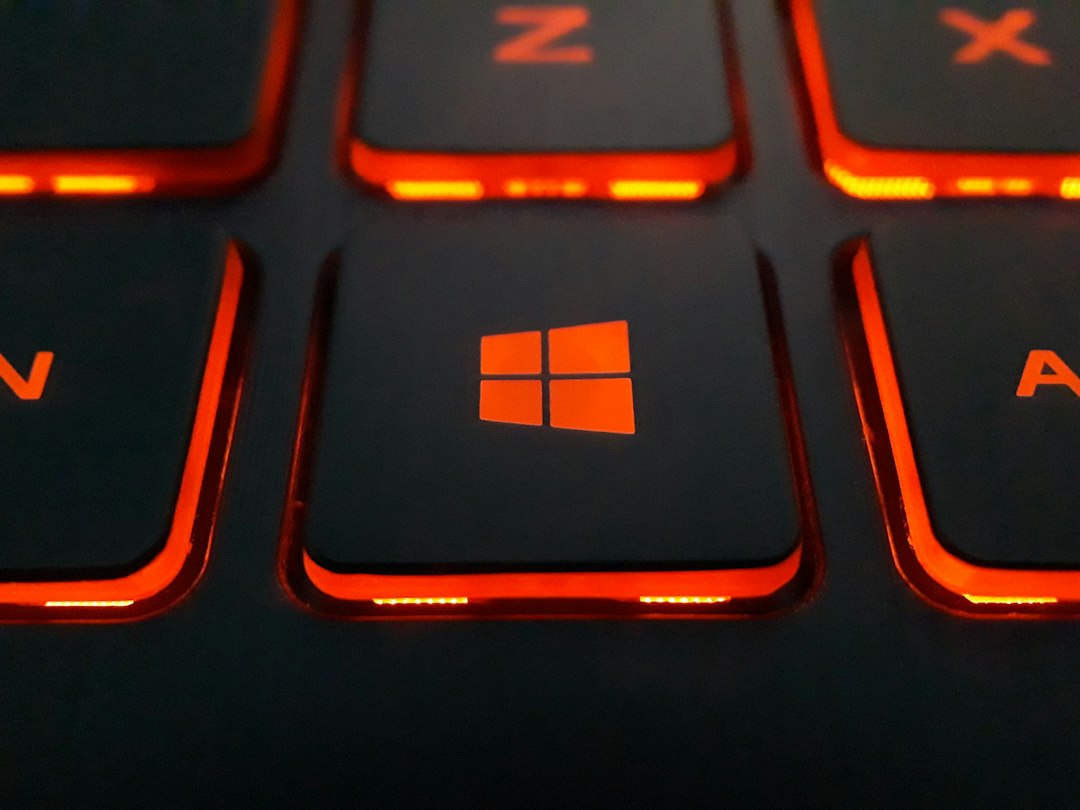
How screenshots work on Windows
Windows has several screenshot methods, and that is both useful and mildly annoying. You get more choices, but some overlap. Honestly, it feels like Windows keeps old screenshot habits alive instead of fully replacing them.
The most useful option is Snipping Tool. Press Win + Shift + S, and a small toolbar appears at the top of the screen. You can choose:
- Rectangular snip: drag a box around the area you want.
- Freeform snip: draw an irregular shape.
- Window snip: capture one app window.
- Full screen snip: grab everything visible.
After you take a snip, Windows places it on the clipboard. A notification usually appears. Click it, and Snipping Tool opens with markup tools. You can draw, highlight, crop, copy, save, or share.
The catch is that the capture is not always saved as a file right away. That can trip people up. You think you took a screenshot, close the notification, then wonder where the file went. Expect to waste a few seconds the first time this happens.
Other Windows screenshot shortcuts
Windows also supports older keyboard shortcuts. They still matter, especially on work computers with locked-down settings.
- Print Screen: copies the full screen to the clipboard. On some PCs, it may open Snipping Tool instead.
- Alt + Print Screen: copies the active window.
- Win + Print Screen: captures the full screen and saves it to the Screenshots folder inside Pictures.
- Win + G: opens Xbox Game Bar, which can capture game and app screens.
Win + Print Screen is the safest Windows shortcut when you need a file immediately. The screen briefly dims, and the image lands in Pictures > Screenshots. It is not fancy, but it works.
How screenshots work on Mac
Mac screenshots feel more unified. Apple gives you three main shortcuts, but only one really matters for most people: Shift + Command + 5.
Press it, and a capture panel appears at the bottom of the screen. It includes buttons for capturing the full screen, one window, or a selected area. It also includes screen recording for the full screen or a selected portion.
The best part is the Options menu. From there, you can pick where screenshots go. Common choices include Desktop, Documents, Clipboard, Mail, Messages, and Preview. You can also set a timer for 5 or 10 seconds.
This small feature makes a big difference. If you are writing documentation, you can save every screenshot straight into a folder. No hunting. No dragging. No cleaning up ten files from the desktop later.
Mac screenshot shortcuts worth knowing
- Shift + Command + 3: captures the full screen.
- Shift + Command + 4: lets you select an area.
- Shift + Command + 4, then Space: captures a window.
- Shift + Command + 5: opens the full screenshot and recording panel.
- Control added to a shortcut: copies the screenshot to the clipboard instead of saving it as a file.
By default, Mac saves screenshots to the Desktop. That is simple, but it can get messy fast. If your desktop already looks like a junk drawer, change the save location right away.
Editing and markup
Windows has the edge for quick markup. Snipping Tool gives you pens, a highlighter, cropping, shapes in newer versions, and easy copy options. It is good for circling a button, hiding a small detail, or pointing at an error message.
Mac uses a floating thumbnail after you take a screenshot. Click it, and you get Markup. You can draw, add arrows, add text, crop, rotate, and sign. It is clean and pleasant. Still, Windows often feels a touch faster for rough annotations.
If your daily work includes bug reports or customer support, that speed matters. A screenshot with a box and arrow can prevent five extra chat messages. Nobody wants to type, “No, the blue button in the upper-right corner, not that one,” for the third time.
Screen recording
Mac keeps recording simple. Shift + Command + 5 lets you record the full screen or a selected portion. You can choose a microphone and set a timer. The controls are easy to spot.
Windows can record through Snipping Tool on newer versions, and Xbox Game Bar can record apps and games. It works, but the experience is split. Game Bar is not ideal for every desktop task, and Snipping Tool recording may not be available on older setups. It drives me crazy that two built-in Windows tools can feel like they are solving the same problem in different rooms.
Which one is better?
Choose Windows if you want flexible snips and quick markup. It is great for office work, support tickets, quick instructions, and grabbing parts of a screen without thinking too much.
Choose Mac if you care about neat file handling and built-in recording. The screenshot panel is easier to teach, easier to remember, and better for repeat captures.
For most people, the winner depends on the job. Windows is stronger at fast annotation. Mac is stronger at capture flow. If you take one screenshot a week, either system is fine. If you take dozens, Mac feels calmer, while Windows feels more tool-heavy but powerful.
Best practical setup
- On Windows: use Win + Shift + S for most captures and Win + Print Screen when you need an instant saved file.
- On Mac: use Shift + Command + 5, then set a custom save folder from Options.
- For sharing: copy to clipboard when pasting into chat, email, or docs.
- For records: save files with clear names, such as login error 2026 10 26.
The shortest answer is simple: Windows gives you more capture habits; Mac gives you a cleaner capture system. Learn the main shortcut on your machine, set the save behavior once, and screenshots stop feeling like a tiny daily chore.