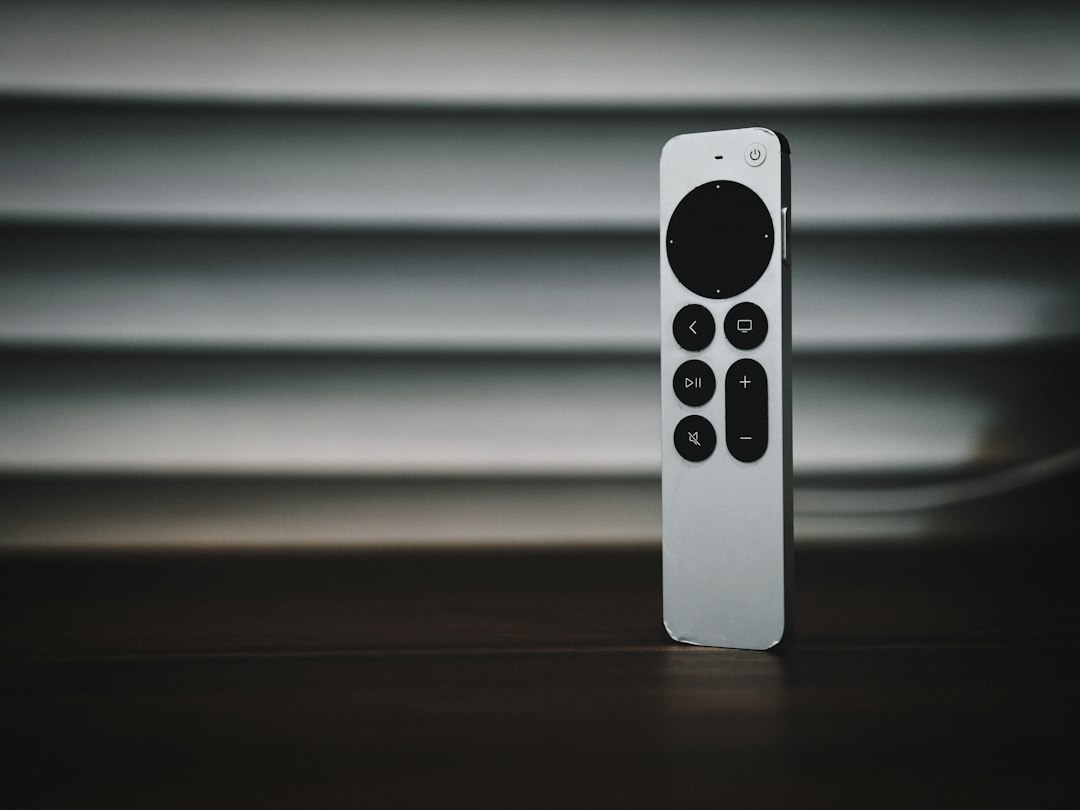
Reset the Apple TV remote first by holding TV/Control Center and Volume Down for about 5 seconds, then wait for it to reconnect. Apple lists this as the restart method for the Siri Remote and Apple TV Remote, and it usually takes under a minute if the battery is not dead [source: Apple]. If that fails, charge it, pair it again, and then check the Apple TV itself.
TLDR: Restart the remote with TV/Control Center + Volume Down, wait 10 to 20 seconds, then try again. If nothing changes, charge it for at least 30 minutes and re-pair it by holding Back/Menu + Volume Up near the Apple TV. For example, if your remote stops responding after a tvOS update, this routine can save you from wasting 15 minutes unplugging cables and guessing. In many cases, the issue is a stuck Bluetooth connection, not a broken remote.
Start with the simple reset
If your Apple TV remote suddenly stops working, do not assume it is dead. The connection can freeze. The buttons may stop sending commands. The touch surface may lag. It drives me crazy that a remote this small can make the whole TV feel broken, but the fix is often quick.
For a Siri Remote or newer Apple TV Remote, follow these steps:
- Hold TV/Control Center and Volume Down at the same time.
- Keep holding for about 5 seconds.
- Watch the Apple TV light. It should turn off, then back on.
- Release the buttons.
- Wait for a message that says the remote disconnected, then reconnected.
Try the remote again. Press Menu, Back, or swipe on the clickpad. If it responds, you are done.

Charge the remote before doing anything else
A low battery can look like a pairing problem. The remote may wake the Apple TV once, then stop. It may work from one angle only. It may also ignore volume buttons while the rest still works.
Plug the remote into power for at least 30 minutes. Use a known working cable. Older Siri Remotes use Lightning. Newer models use USB C. Avoid loose ports, cheap damaged cables, and laptop ports that are sleeping.
After charging, repeat the reset steps. This matters because a remote with almost no power may not restart cleanly.
Pair the remote again
If the reset does not help, repair the connection. This is often the real fix after updates, power cuts, or when someone used another remote nearby.
Stand close to the Apple TV. Apple recommends keeping the remote about 3 inches from the box during pairing [source: Apple].
- Point the remote at the Apple TV.
- Hold Back and Volume Up for about 5 seconds.
- On older remotes, hold Menu and Volume Up instead.
- If the screen asks you to place the remote on top of Apple TV, do that.
- Wait for the pairing message.
After pairing, test every main button. Check volume too. Volume control may use infrared or HDMI CEC, so it can fail even when the Apple TV buttons work.
If you have the older aluminum or white Apple Remote
The older Apple Remote works differently. It does not recharge. It uses a coin cell battery. If it stops working, replace the battery first.
Then try linking it again:
- Hold Menu and Right for about 6 seconds to link it.
- Hold Menu and Left for about 6 seconds to unlink it.
- Make sure nothing blocks the front of the Apple TV, since older remotes use infrared.
These remotes need a clear line of sight. A soundbar, thick cabinet door, or even a messy shelf can block the signal.
Restart the Apple TV if the remote still fails
If the remote looks fine but the Apple TV ignores it, restart the Apple TV box. Pull the power cable from the back. Wait 10 seconds. Plug it back in.
This is not elegant, but it works. Honestly, it feels like a crude fix for an expensive streaming box, yet it clears frozen Bluetooth and system hiccups.
Once Apple TV reloads, try the remote again. If needed, repeat the pairing process.
Use your iPhone as a temporary remote
If you need control right now, use the Apple TV Remote in Control Center on your iPhone or iPad. This gives you time to fix the physical remote without being stuck on a login screen.
- Open Control Center.
- Tap the Apple TV Remote icon.
- Select your Apple TV.
- Enter the code shown on the TV, if asked.
If the iPhone remote works, your Apple TV is probably fine. The fault is more likely the physical remote, its battery, or its pairing state.
Check interference and HDMI CEC
Bluetooth can be affected by clutter and nearby devices. Move game controllers, metal objects, and wireless speakers away from the Apple TV. Also check that the Apple TV is not buried behind the television.
If only the volume buttons fail, check your TV or receiver settings. Look for HDMI CEC, sometimes called Anynet+, Bravia Sync, Simplink, or Viera Link. Turn it on if you want the Apple TV remote to control volume through HDMI.
When to replace the remote
Replace the remote if it will not charge, will not pair after several tries, or has clear physical damage. Swollen batteries, liquid damage, and broken charging ports are not worth fighting.
Before buying a new one, test with an iPhone remote and restart the Apple TV. If those work, the remote is the likely problem. If nothing controls the Apple TV, the box, power supply, or HDMI setup may need attention.
Best order to try: reset the remote, charge it, pair it again, restart Apple TV, then test with iPhone. That order fixes the common problems first and avoids guesswork.