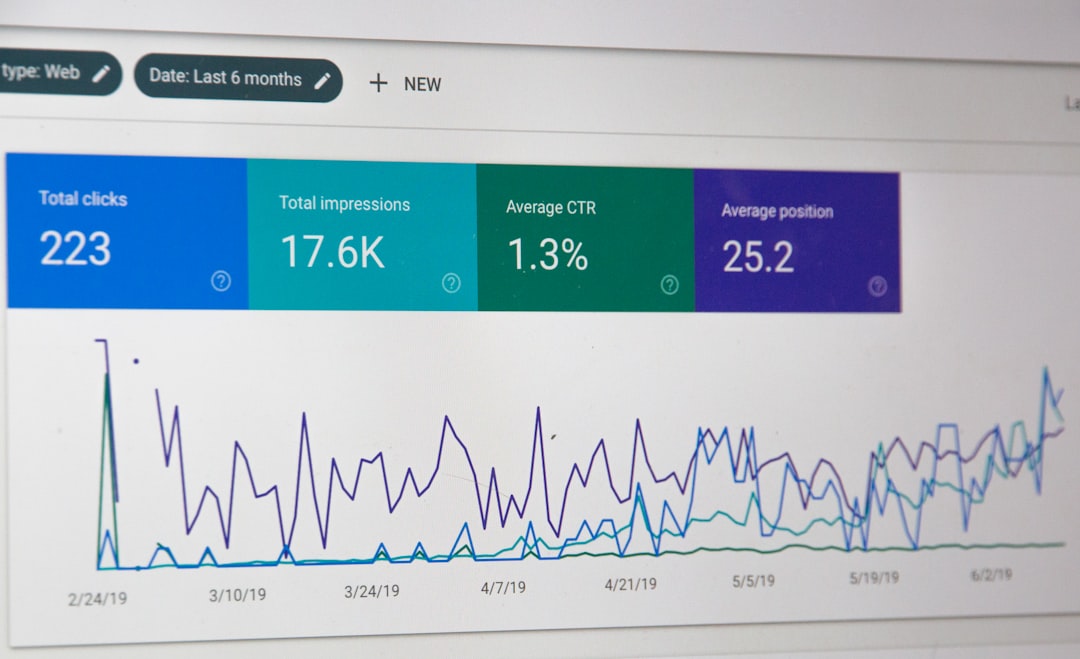
Reliable SEO reporting depends on bringing data from multiple systems into one clear, repeatable view. Moz is often used for keyword rankings, domain authority metrics, link analysis, and site visibility insights, while Looker Studio is a practical platform for building client dashboards, internal reports, and executive summaries. Connecting Moz data to Looker Studio helps teams reduce manual reporting work and make SEO performance easier to monitor over time.
TLDR: Moz does not function like a standard built-in Looker Studio data source in most reporting setups, so you usually connect it through a third-party connector, Google Sheets, the Moz API, or a data warehouse. The best method depends on your reporting frequency, technical resources, and the amount of data you need. For serious SEO reporting, define your metrics first, automate refreshes where possible, and validate the data before sharing dashboards with stakeholders.
Why connect Moz to Looker Studio?
Moz provides valuable SEO data, but reports are often more useful when combined with other sources such as Google Search Console, Google Analytics 4, Google Ads, CRM data, or rank tracking exports. Looker Studio allows you to combine these datasets into dashboards that can be filtered by date, campaign, page, keyword group, location, or client.
A Moz to Looker Studio workflow can support several reporting needs:
- Keyword visibility tracking across target terms and campaigns.
- Domain and page authority monitoring for competitive benchmarking.
- Backlink analysis, including linking domains and link growth trends.
- Technical and content reporting when Moz data is combined with crawl, analytics, or search performance data.
- Client-facing SEO dashboards that update without rebuilding slides every month.
Understand the connection options
Before building a dashboard, it is important to understand that connecting Moz to Looker Studio is not always a one-click process. Many teams use one of four common approaches: a third-party connector, Google Sheets, a custom API integration, or a database such as BigQuery.
1. Use a third-party Looker Studio connector
The simplest approach is often a paid connector from a reputable data integration provider. These connectors typically authenticate with Moz or retrieve Moz-related data, then expose fields inside Looker Studio as a report-ready data source.
This option is suitable if your team wants a low-maintenance setup and does not have development resources. However, you should review the connector’s documentation carefully. Confirm which Moz metrics are supported, how often the data refreshes, whether historical data is stored, and how the connector handles API limits or failed refreshes.
2. Export Moz data into Google Sheets
Google Sheets is a practical intermediate layer for smaller reports. You can export data from Moz, paste it into a structured sheet, and connect that sheet to Looker Studio. This is not the most automated method, but it is easy to audit and suitable for monthly reporting.
For better consistency, use fixed column names such as Date, Campaign, Keyword, Rank, URL, Domain Authority, Page Authority, Linking Domains, and Notes. Avoid changing column names after connecting the sheet, because this can break charts in Looker Studio.
3. Use the Moz API
For more advanced reporting, the Moz API can be used to pull SEO metrics into a controlled storage location. Depending on your Moz plan and API access, you may be able to retrieve data related to links, URL metrics, keyword metrics, or other SEO indicators. The exact endpoints and limits should always be checked against Moz’s current API documentation.
A typical API workflow looks like this:
- Generate or retrieve your Moz API credentials.
- Write a script that requests the required metrics.
- Store the response in Google Sheets, BigQuery, or another database.
- Connect that storage layer to Looker Studio.
- Schedule the script to run daily, weekly, or monthly.
This method gives you stronger control over data structure, refresh timing, and historical storage, but it requires technical oversight.
4. Load Moz data into BigQuery
For agencies, enterprise teams, or high-volume SEO programs, BigQuery is often the most reliable long-term option. It allows you to store historical Moz data, join it with Google Search Console or analytics data, and perform transformations before the data reaches Looker Studio.
BigQuery is especially useful when you need to analyze trends across thousands of URLs, many domains, or multiple clients. It also helps maintain a clean reporting layer, because Looker Studio performs better when charts are built from organized tables rather than scattered exports.
Build the data model before designing the dashboard
One of the most common SEO reporting mistakes is designing the dashboard before defining the data model. Start by deciding which questions the report must answer. For example: Are rankings improving for priority keywords? Is authority increasing for key landing pages? Are new referring domains being acquired? Which pages have strong SEO visibility but weak conversions?
Once the questions are clear, define your fields. A basic Moz reporting table may include:
- Date: The reporting date or extraction date.
- Domain or subdomain: The property being measured.
- URL: The page receiving authority, links, or rankings.
- Keyword: The tracked search term, where relevant.
- Search engine or location: Useful for local or international reporting.
- Rank or visibility metric: Used to track keyword movement.
- Authority metrics: Such as domain or page-level authority indicators.
- Link metrics: Such as linking domains, inbound links, or spam-related indicators where available.
Connect the data source in Looker Studio
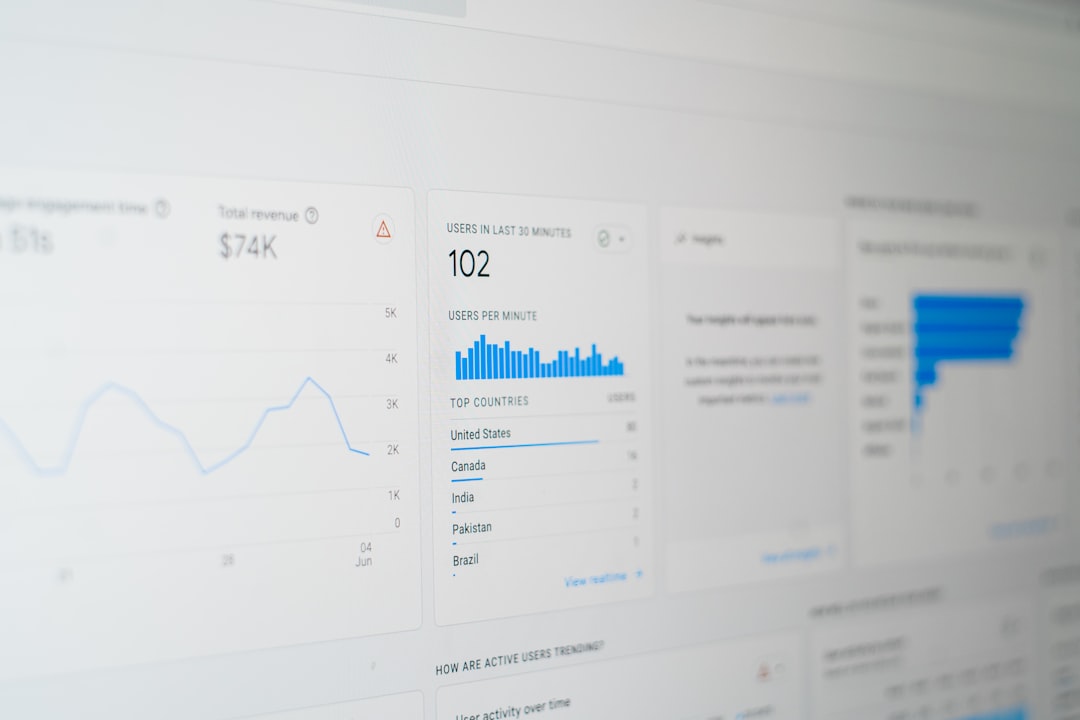
After your Moz data is available through a connector, sheet, or database, open Looker Studio and create a new data source. Select the appropriate connector, authorize access, and review the field list. Set correct field types before building charts. Dates should be formatted as dates, ranks and link counts as numbers, and categories such as campaign or keyword group as text dimensions.
Next, create calculated fields where they add clarity. For example, you may want a Rank Change field, a branded versus non-branded keyword category, or a page group based on URL patterns. If you are blending Moz data with Search Console or GA4 data, make sure the join keys are stable. URL matching can be difficult because of trailing slashes, parameters, uppercase characters, and canonical differences.
Recommended dashboard sections
A serious SEO dashboard should be concise enough for decision-makers while still giving analysts the detail they need. Consider structuring the report around the following sections:
- Executive overview: High-level KPIs, trend lines, and short commentary.
- Keyword performance: Ranking changes, top gains, top losses, and priority keyword groups.
- Authority and link profile: Domain trends, page-level metrics, linking domains, and backlink growth.
- Page performance: Combine Moz URL metrics with impressions, clicks, sessions, or conversions.
- Competitor comparison: Track selected authority or visibility metrics against known competitors.
Use filters carefully. Date controls, campaign filters, keyword groups, and landing page categories are usually valuable. Too many controls can make the report confusing and increase the risk of misinterpretation.
Validate the data before publishing
Before sharing the dashboard, compare Looker Studio numbers against the source data in Moz or your intermediate storage layer. Check totals, date ranges, missing values, and duplicate rows. If you are using API data, confirm that rate limits or partial refreshes are not creating incomplete tables.
It is also wise to document the reporting logic directly in the dashboard. A short notes section can explain refresh frequency, data sources, metric definitions, and known limitations. This improves trust and reduces repetitive questions from clients or internal stakeholders.

Best practices for dependable SEO reporting
- Automate when the report is recurring. Manual exports are acceptable for one-off work, but recurring reports benefit from scheduled refreshes.
- Keep historical snapshots. SEO metrics change, and historical storage helps you explain long-term movement.
- Avoid vanity-only reporting. Authority and ranking metrics are useful, but they should be connected to traffic, leads, revenue, or strategic visibility where possible.
- Use consistent naming conventions. Campaigns, keyword groups, and page categories should be standardized.
- Review API and connector changes. SEO platforms and third-party connectors can change fields, limits, or authentication requirements.
Final thoughts
Connecting Moz to Looker Studio can turn isolated SEO metrics into a structured reporting system. The right setup depends on the scale of your reporting operation: Google Sheets may be enough for simple monthly reports, while API or BigQuery workflows are better for larger and more automated environments. The most important step is not simply moving data from Moz into Looker Studio, but making sure the data is accurate, well-labeled, and connected to business-relevant SEO questions.