Your phone is tiny. Your patience is tiny too. That is why fast mobile pages matter. Accelerated Mobile Pages, or AMP, can help your WordPress site load faster on phones. And yes, you can set it up in minutes.
TLDR: Install an AMP plugin from your WordPress dashboard. Use a simple setup wizard. Pick a template mode, check your pages, and save your settings. Then test your AMP pages and enjoy a cleaner, faster mobile experience.
What Is AMP, in Plain English?
AMP is a way to make web pages lighter. Think of it like packing for a weekend trip. You do not bring the piano. You bring socks, snacks, and a phone charger.
AMP removes extra weight from your pages. It keeps the important stuff. Text. Images. Links. Basic layout. It limits heavy scripts that slow things down.
This can help mobile visitors. Pages may load faster. They may feel smoother. People may stay longer. That is a good thing.
Now, one quick note. AMP is not magic dust. It will not fix terrible hosting. It will not repair giant images. It will not make boring content exciting. But it can be a helpful speed tool.
Before You Begin
Let us get ready. No hard hat needed.
- Make sure you have a WordPress admin login.
- Update WordPress if you can.
- Update your theme and plugins.
- Back up your site.
- Grab a snack. This is quick, but snacks help.
A backup is important. Most AMP setup steps are safe. Still, backups are like umbrellas. You hope you do not need one. You are happy when you have one.
Step 1: Choose an AMP Plugin
You have a few plugin choices. The easiest path is to use a trusted AMP plugin from the WordPress plugin directory.
Popular choices include:
- AMP by the official AMP project.
- AMP for WP, which offers many options.
- Other AMP tools that work with your theme and plugins.
For beginners, start simple. The official AMP plugin is a clean option. It guides you through setup. It also helps find problems.
If you want more design controls, another plugin may suit you better. But more controls can mean more buttons. More buttons can mean more confusion. And confusion is not invited to this party.
Step 2: Install the Plugin
Now we go to the fun zone. The dashboard.
- Log in to WordPress.
- Go to Plugins.
- Click Add New.
- Search for AMP.
- Find the plugin you want.
- Click Install Now.
- Click Activate.
That is it. The plugin is installed. You have officially done the first big thing. Give yourself a tiny clap.
Step 3: Run the Setup Wizard
Most AMP plugins open a setup wizard. This is a friendly guide. It asks questions. You click answers. No wizard hat needed.
You may see options like:
- Template mode
- Supported content types
- Design settings
- Analytics settings
- Validation tools
Do not panic. These words sound bigger than they are.
Template mode means how AMP pages will look and work. Some plugins offer modes like Standard, Transitional, or Reader.
- Standard: Your whole site tries to use AMP.
- Transitional: You keep normal pages and AMP versions.
- Reader: AMP pages use a simple separate design.
If you are new, Reader mode is often the safest. It creates simple AMP pages without changing your main site too much. If your theme works well with AMP, Standard can be great. If you are not sure, start with safe settings. You can change them later.
Step 4: Pick What Gets AMP
You do not always need AMP on every part of your site. Blog posts are usually a great place to start.
Common choices include:
- Posts
- Pages
- Categories
- Products, if you run a store
For a simple blog, enable AMP for posts. That is the main treasure chest. People often find posts through search. They open them on phones. Fast posts make them happier.
If you have important landing pages, you can enable AMP for pages too. But test them first. Forms, sliders, popups, and fancy widgets may not love AMP. Some of them may sulk in the corner.
Step 5: Choose a Simple Design
AMP pages should be clean. That is the point. Do not try to stuff them like a suitcase before vacation.
Set your basic design options:
- Add your logo.
- Choose brand colors.
- Pick a readable font.
- Keep buttons clear.
- Make links easy to tap.
Use a white or light background if you want safe readability. Use dark text. Add enough spacing. Your visitors are reading on small screens. Their thumbs are not laser pointers.
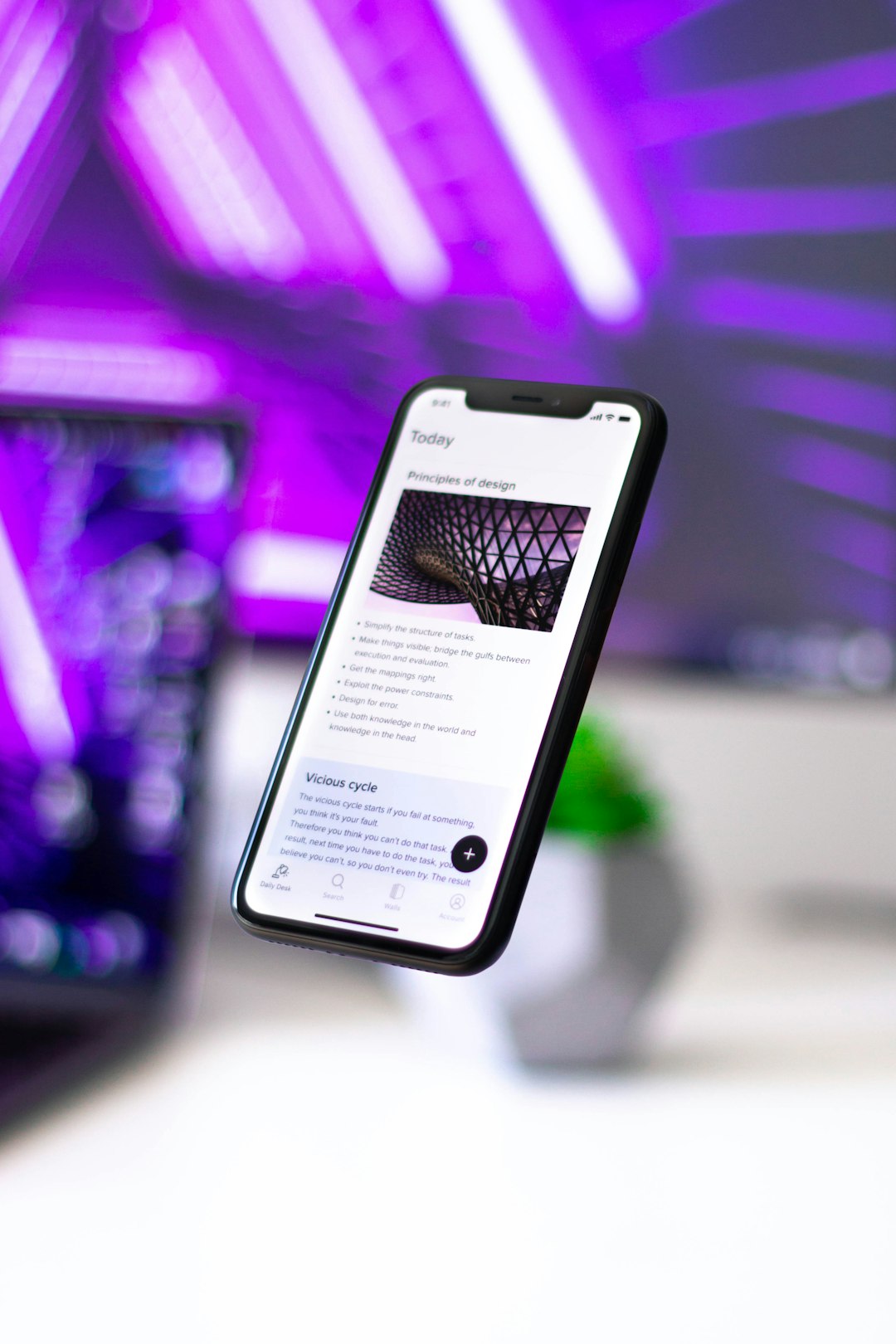
Keep the header simple. Keep the menu short. Keep the footer useful. AMP is not the place for twenty flashing boxes. It is the place for speed, clarity, and calm.
Step 6: Add Analytics
You still want to know what visitors do. Good news. AMP can work with analytics tools.
Your plugin may have a spot for analytics settings. Look for labels like:
- Google Analytics
- GA4
- Tracking ID
- Measurement ID
Copy your analytics ID from your analytics account. Paste it into the plugin field. Save the settings.
If you use another analytics plugin, check if it supports AMP. Some do. Some need extra setup. Some just stare at you like a cat at a closed door.
Step 7: Check Ads and Forms
If your site makes money from ads, check your ad settings. Many AMP plugins support AMP friendly ads. But you may need to turn them on.
Look for options like:
- AdSense
- Auto ads
- Ad placement
- Header ads
- In content ads
Use fewer ads on AMP pages. Fast pages should feel fast. Too many ads can ruin the mood.
Forms need attention too. Contact forms, newsletter boxes, and checkout forms may need AMP support. Test every form that matters. If a form breaks, use a plugin feature or shortcode that supports AMP. Or leave that page out of AMP.
Step 8: Validate Your AMP Pages
This step sounds fancy. It is just a checkup.
AMP pages must follow certain rules. If something breaks the rules, the page may not be valid AMP. The plugin can often show warnings.
Do this:
- Open one of your posts.
- Find the AMP version.
- Use the plugin validation tool.
- Check any errors.
- Fix what you can.
Some AMP URLs add ?amp at the end. Others use /amp/. It depends on the plugin.
You can also use online AMP testing tools. Paste your AMP URL. Run the test. If it passes, cheer loudly. If it fails, read the message. Many fixes are simple.
Step 9: Test on Your Phone
Do not skip this. Your phone is the final judge. It sits on the tiny throne.
Open your AMP pages on a real phone. Tap around. Read a post. Open the menu. Try links. Check images. Test forms. Scroll like a normal human.
Ask these questions:
- Does the page load fast?
- Can I read the text easily?
- Are images the right size?
- Do buttons work?
- Is anything missing?
- Does it feel smooth?
If something feels weird, fix it now. Small problems can annoy visitors. Annoyed visitors leave. Happy visitors click, read, and return.
Step 10: Watch Search Console
If you use Google Search Console, check it after setup. It may show AMP reports. These reports can show valid pages and errors.
Do not expect instant results. Search tools need time. Give it a few days. Then check for issues.
If errors appear, click them. Read the details. Many errors come from scripts, forms, images, or custom theme features. Your AMP plugin may suggest fixes.
Common AMP Setup Mistakes
Let us dodge the banana peels.
- Using too many plugins: Some plugins add heavy scripts. AMP may block them.
- Skipping validation: Always test your AMP pages.
- Forgetting analytics: You need tracking on AMP too.
- Adding huge images: Compress images before upload.
- Expecting the same design: AMP pages may look simpler. That is normal.
- Not testing forms: Broken forms equal sad inboxes.
Quick Speed Tips Before You Leave
AMP helps. But you can make your site even faster.
- Use good hosting.
- Compress images.
- Use caching.
- Remove plugins you do not need.
- Keep your theme light.
- Use lazy loading for images.
- Update everything often.
Fast sites feel better. They also look more professional. Nobody enjoys waiting for a page to load while their coffee gets cold.
Can You Really Do This in Minutes?
Yes. Basic setup can take just a few minutes. Install. Activate. Run the wizard. Pick a mode. Save. Test.
More advanced setup takes longer. Ads, analytics, forms, and design tweaks may add time. But the first version can be quick.
Here is a simple five minute plan:
- Minute 1: Install and activate the plugin.
- Minute 2: Open the setup wizard.
- Minute 3: Choose a safe template mode.
- Minute 4: Enable AMP for posts.
- Minute 5: Save and test one post.
That is the fast path. You can polish later. Websites are like gardens. First you plant. Then you trim.
Final Thoughts
Setting up an AMP WordPress plugin is not scary. It is not a dragon. It is more like a small scooter. You turn it on, steer carefully, and enjoy the speed.
Start with simple settings. Use AMP for posts first. Validate your pages. Test on a phone. Watch your reports. Then improve as you go.
The goal is simple: give mobile visitors a faster, cleaner page. Make reading easy. Make tapping easy. Make waiting rare.
Do that, and your site will feel lighter. Your visitors will feel happier. And you can proudly say, “Yes, I set up AMP in minutes.”