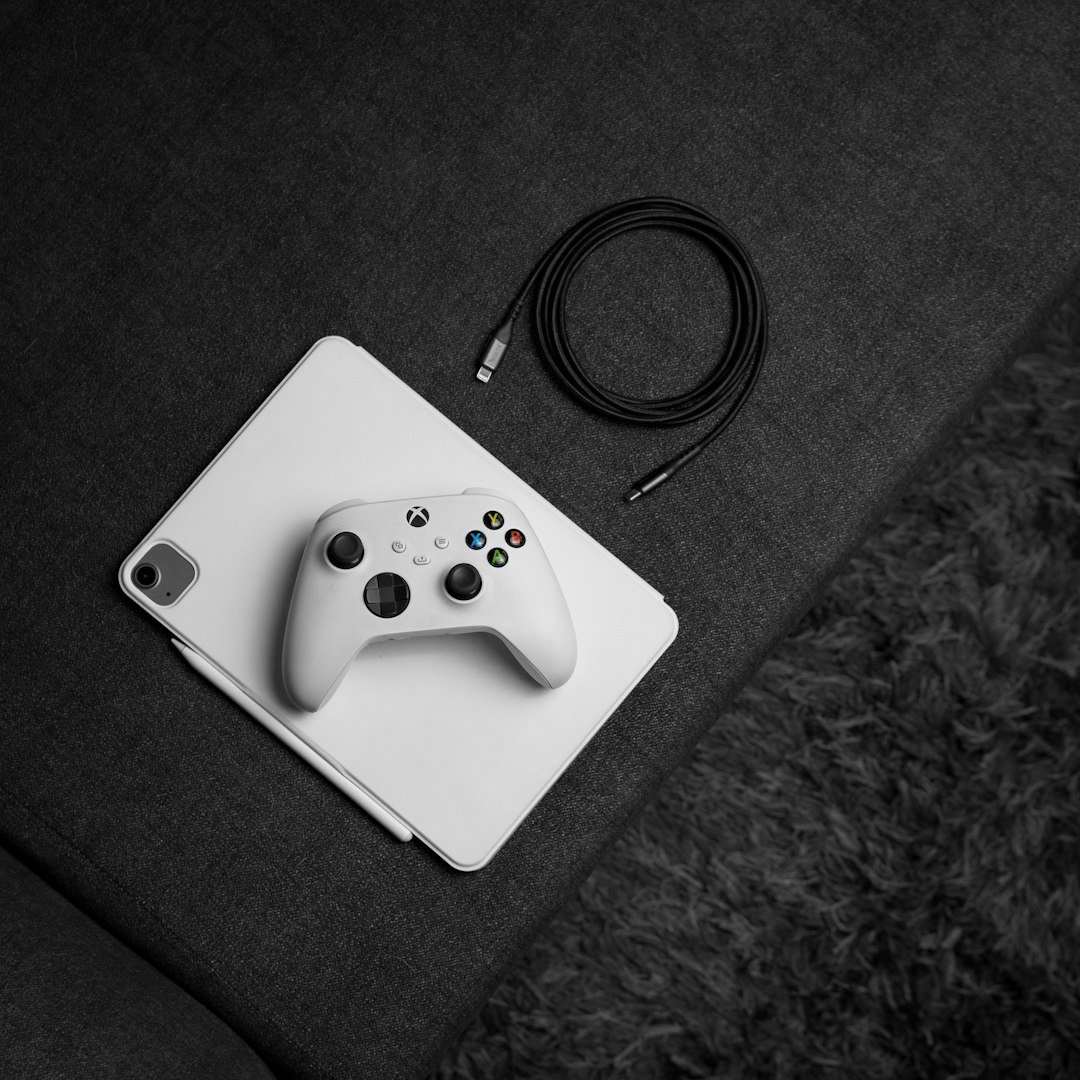
Your iPad is not a PS Vita. It is bigger. It is shinier. It may not fit in your hoodie pocket. But with the right setup, it can feel like a tiny handheld game machine from a very fun timeline. You can give it buttons. You can give it a game library. You can give it that cozy “one more level before bed” feeling.
TLDR: To make your iPad feel like a PS Vita, add a good controller, use handheld friendly games, and set up a clean gaming home screen. Try cloud gaming, Remote Play, App Store gems, and legal emulation if it is allowed where you live. Make the screen, sound, case, and layout feel like a real handheld. The goal is simple: less tablet, more pocket arcade.
Start With the Right iPad Mindset
The PS Vita felt special because it was focused. You picked it up and played. No desk. No TV. No big setup. Just games in your hands.
Your iPad can do that too. The trick is to remove friction. That means fewer taps. Better controls. A strong game folder. A comfy grip. And no random work apps staring at you while you are trying to save the world.
Think of this project like making a “Vita mode” for your iPad. You are not trying to copy the Vita exactly. You are trying to capture the vibe. Small games. Quick sessions. Bright screen. Great buttons. Cozy energy.
Step 1: Add Real Buttons
This is the biggest upgrade. Touch controls are fine for some games. But a PS Vita had buttons. The buttons mattered. They made games feel snappy and real.
You have a few good options:
- Bluetooth controller: Use an Xbox, PlayStation, or 8BitDo controller. It is easy and works with many iPad games.
- Backbone style controller: These clamp around the iPad or iPhone, depending on the model. For iPad, check size support first.
- Controller grip case: Some cases add handles. They make the iPad easier to hold for long sessions.
- Arcade mini controller: Great for fighting games, retro games, and beat ’em ups.
If your iPad is large, a normal Bluetooth controller may feel best. Put the iPad on a stand. Hold the controller. Boom. Portable console.
If your iPad is smaller, like an iPad mini, you can get much closer to the PS Vita feel. The iPad mini is the secret hero here. It has a bright screen. It is light. It is great for gaming in bed, on the couch, or during travel.
Step 2: Make a Gaming Home Screen
A PS Vita had bubbles. They were silly. They were charming. Your iPad has app icons, widgets, and folders. Use them.
Create a page that is only for games. No email. No calendar. No bank app. No boring stuff. Give your brain one clear message: this page is for play.
Try this layout:
- Top row: Your most played games.
- Second row: Cloud gaming and Remote Play apps.
- Third row: Emulators or retro collections, if you use them legally.
- Bottom dock: Controller app, Discord, Safari, and Settings.
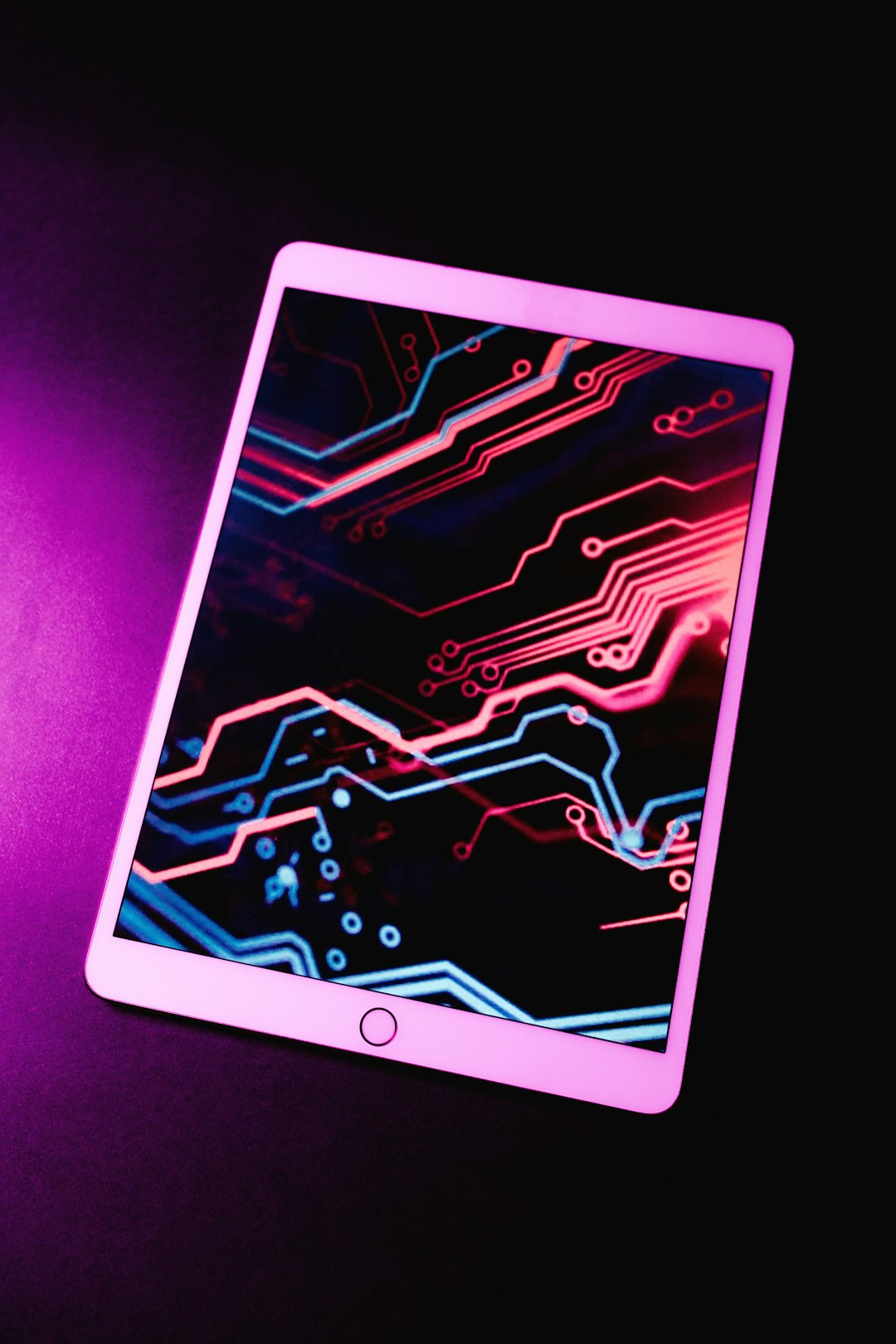
Add a fun wallpaper. Retro grids work well. So do pixel art scenes. So do neon city backgrounds. Pick something that makes the iPad feel like a game device, not a school tablet.
You can also use Focus Mode. Make a Gaming Focus. Hide notifications. Silence messages. Let only important people through. The Vita did not ask you to answer emails. Your iPad should not either.
Step 3: Build a Vita Style Game Library
The PS Vita was loved because it had certain kinds of games. It was great for indies. It was great for JRPGs. It was great for visual novels. It was great for action games that worked in short bursts.
Your iPad can shine with the same kinds of games. Look for games that feel good on a handheld. Not every game needs huge graphics. Some of the best handheld games are simple, fast, and stylish.
Try these types of games:
- Indie platformers: Short levels. Tight controls. Big smiles.
- Roguelikes: Quick runs. Endless replay value.
- Racing games: Easy to pick up. Fun with a controller.
- JRPGs: Perfect for long couch sessions.
- Puzzle games: Great for touch or buttons.
- Visual novels: Very Vita. Very cozy. Great on a sharp screen.
- Retro collections: Old games often feel perfect on a handheld.
Apple Arcade is also worth a look. It has many games with controller support. No ads. No weird energy meters. No “buy 400 gems” popups. That helps your iPad feel more like a real console.
Step 4: Use PS Remote Play
If you own a PlayStation console, this is a huge move. PS Remote Play lets you stream your PlayStation to your iPad. That means your iPad can become a little PlayStation screen.
Connect a DualSense or DualShock controller. Open the Remote Play app. Pair it with your console. Then play from another room. Or from bed. Or from the sofa while someone else uses the TV.
For the best experience, use strong Wi Fi. Put your console on a wired internet connection if possible. Lower lag makes everything feel better. Fast action games need it most.
This setup feels very close to the dream of a modern Vita. It is not exactly the same. You are streaming instead of running the game locally. But when it works well, it feels magical.
Step 5: Try Cloud Gaming
Cloud gaming can also help. Services like Xbox Cloud Gaming, GeForce Now, or other streaming apps can turn your iPad into a portal for big games. You do not need a gaming PC in your bag. You just need a good connection.
The Vita was famous for making big games feel small. Cloud gaming does that too. A huge open world becomes something you can play while curled under a blanket.
Again, the secret is internet speed. Good Wi Fi is your friend. A controller is your other friend. Lag is your enemy. Lag is the dragon. Slay the dragon with better Wi Fi.
Step 6: Explore Legal Retro Gaming
Retro games are a big part of the handheld feeling. Many older games were made for quick play. They load fast. They are colorful. They do not need a million buttons.
Depending on your region and the apps available to you, you may be able to use emulators on your iPad. Only use games you own or have the legal right to play. Do not download random files from shady sites. That road leads to bad vibes.
You can also buy official retro collections. These are simple and safe. Many come with save states, filters, and controller support. Save states are great. They let you stop anytime. That is perfect for handheld play.
If you want the Vita feeling, pay attention to these features:
- Save anywhere: Great for quick sessions.
- Controller support: Makes games feel real.
- Screen filters: Adds retro charm.
- Simple menus: Less fuss, more play.
Step 7: Make It Comfortable to Hold
An iPad is not shaped like a PS Vita. It is a smooth rectangle. A pretty one, yes. But still a rectangle. After a while, your hands may complain.
Fix that with comfort gear.
- Use a case with grip: It helps your hands relax.
- Add a stand: Great when using a separate controller.
- Try a pillow stand: Perfect for bed gaming.
- Use a matte screen protector: It reduces glare and feels softer.
- Keep a cleaning cloth nearby: Fingerprints are the final boss.
If you play with a controller, a small folding stand is amazing. It lets you place the iPad at the right angle. It also makes the whole setup feel like a mini console.
If you play with touch controls, the iPad mini is again a winner. It is easier to hold. Your thumbs can reach more of the screen. It feels more like a handheld and less like a serving tray.
Step 8: Improve the Sound
The Vita had speakers and a headphone jack. Simple times. Your iPad may have very good speakers, but headphones can make it feel more personal.
Use wireless earbuds for casual play. Use wired headphones with an adapter if you care about low delay. Rhythm games and action games can feel better with less audio lag.
You can also make a little gaming audio preset if your headphones have an app. Boost the mids. Keep voices clear. Do not overdo the bass. Explosions are fun, but muddy sound is not.
Good sound makes small games feel bigger. It also helps with that private handheld feeling. You are not just using a tablet. You are inside the game bubble.
Step 9: Add Vita Style Details
This is where the fun begins. Small details can change the whole mood.
- Use a lock screen with game art: It sets the tone right away.
- Name your game folder “Vita Mode”: Yes, it is silly. Do it anyway.
- Use dark mode: It feels more console like.
- Turn on password free quick access at home: Only if it is safe for you.
- Keep a controller charged nearby: Dead controllers ruin kingdoms.
You can even make shortcuts. One shortcut can open your favorite game. Another can turn on Gaming Focus. Another can launch Remote Play. It feels fancy. It also saves taps.
Step 10: Choose Games That Respect Your Time
A handheld should be friendly. It should let you play for five minutes or five hours. The best Vita style iPad games do not punish you for stopping.
Look for games with fast loading. Look for clear save systems. Look for controller support. Avoid games that bury you in ads or daily chores unless you truly enjoy them.
Good handheld games say, “Welcome back.” Bad ones say, “You missed seven rewards and now a dragon owns your house.” Choose peace.
A Simple Setup Recipe
If you want the fastest path, try this:
- Pick an iPad mini or any iPad you already own.
- Pair a Bluetooth controller.
- Add a small stand or grip case.
- Create one home screen page for games only.
- Install PS Remote Play if you have a PlayStation.
- Add Apple Arcade or controller friendly App Store games.
- Set up Gaming Focus to block distractions.
- Use a fun wallpaper and name the folder Vita Mode.
That is it. You do not need to spend a fortune. Start with the controller. Then improve the comfort. Then build the library.
Final Thoughts
The PS Vita had a special charm. It felt personal. It felt playful. It made big adventures feel close and small. Your iPad can capture a lot of that magic.
Give it buttons. Give it a clean game zone. Give it cozy games. Use Remote Play. Try cloud gaming. Add comfort. Add style. Most of all, make it easy to pick up and play.
When your iPad stops feeling like a work screen and starts feeling like a little game portal, you have done it right. Welcome to Vita Mode. Have fun.