
Custom typography can transform a PowerPoint deck from “just another presentation” into something polished, memorable, and unmistakably on-brand. But there is a catch: if the font you used is not installed on another computer, PowerPoint may replace it with a default font, breaking layouts, spacing, and visual consistency. The solution is to embed fonts in PowerPoint so your presentation keeps its intended look wherever it is opened.
TLDR: To embed a font in PowerPoint, go to File > Options > Save, then enable Embed fonts in the file. Choose whether to embed only the characters used or the entire font, depending on whether others need to edit the deck. Font embedding works best on Windows, while PowerPoint for Mac has more limited support. Always test your presentation on another device before sending or presenting it.
Why Font Embedding Matters
Fonts are more than decoration. They influence tone, hierarchy, readability, and brand recognition. A sleek geometric sans serif can make a technology pitch feel modern, while an elegant serif can make a portfolio or editorial presentation feel refined. When PowerPoint substitutes your custom font, the results can be surprisingly dramatic: text may overflow, line breaks may shift, bullet points may look misaligned, and carefully designed slides may suddenly appear unfinished.
Embedding a font means the font data travels inside the PowerPoint file itself. Instead of relying on the receiving computer to have the right typeface installed, the presentation carries the necessary font information with it. This is especially useful when sending decks to clients, coworkers, event organizers, or anyone using a different device.

How to Embed Fonts in PowerPoint on Windows
Font embedding is most reliable in the Windows desktop version of PowerPoint. Here is the standard process:
- Open your PowerPoint presentation.
- Click File in the top-left corner.
- Select Options.
- In the PowerPoint Options window, choose Save.
- Scroll to the section labeled Preserve fidelity when sharing this presentation.
- Check the box for Embed fonts in the file.
- Choose one of the two embedding options.
- Click OK, then save your file.
You will see two important choices under the embedding option:
- Embed only the characters used in the presentation: This keeps the file size smaller. It is best when the recipient only needs to view or present the slides, not edit them extensively.
- Embed all characters: This creates a larger file but allows other people to edit the text using the same font. Choose this if your presentation will be revised by teammates or clients.
If you are preparing a final deck for a keynote, conference, webinar, or sales pitch, embedding only the used characters may be enough. If the file is part of a collaborative workflow, embedding all characters is usually safer.
Can You Embed Fonts in PowerPoint on Mac?
This is where things get a little frustrating. PowerPoint for Mac can display some embedded fonts, but it does not offer the same full font embedding controls as PowerPoint for Windows. In many cases, Mac users cannot embed fonts directly through the same File > Options > Save workflow because that menu structure is Windows-specific.
If you are working on a Mac and need guaranteed typography, consider these options:
- Save or finalize the deck on a Windows computer where font embedding is available.
- Export the presentation as a PDF if it does not need animation or live editing.
- Use widely available fonts such as Arial, Calibri, Aptos, Georgia, or Times New Roman when compatibility matters more than uniqueness.
- Convert important text to shapes for logos, title slides, or highly designed typographic elements.
Converting text to shapes can preserve appearance, but it also makes the text harder to edit. Use it selectively for decorative headings or special slide designs, not for entire paragraphs or content-heavy slides.
Check Whether Your Font Allows Embedding
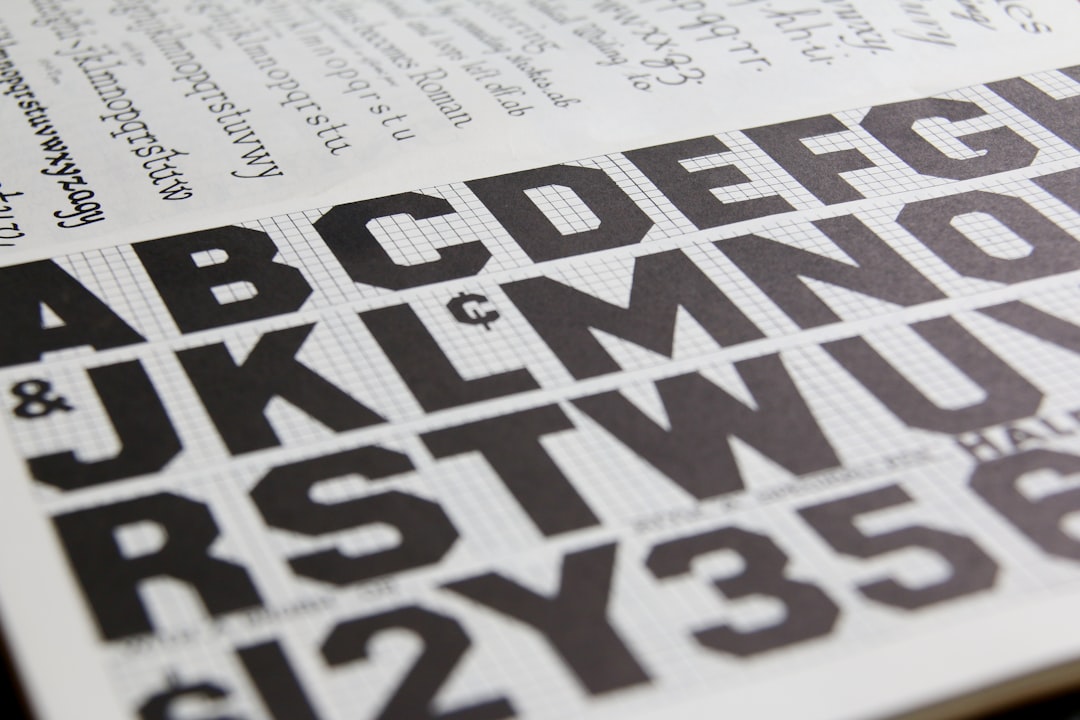
Not every font can be embedded. Font creators can set licensing permissions that determine whether a font may be embedded in documents. Some fonts allow full embedding, some allow preview and print embedding only, and others restrict embedding completely.
If PowerPoint refuses to embed a particular font, the issue is often the font license rather than PowerPoint itself. Commercial fonts, free fonts, and system fonts can all have different rules. Before building a major deck around a custom typeface, it is smart to confirm that the font license allows embedding, especially for business, client, or public-facing presentations.
Best Practices for Preserving Custom Typography
Embedding fonts is powerful, but it is not the only step in protecting your design. Use these practical habits to keep your deck looking consistent:
- Use fonts intentionally: Limit your presentation to two or three typefaces. Too many fonts increase compatibility risks and make the deck feel less cohesive.
- Keep a fallback font in mind: Choose a backup font with similar proportions in case substitution happens.
- Avoid obscure fonts for body text: Highly stylized fonts may look great in titles but can be difficult to read in paragraphs or small labels.
- Test on another computer: Open the saved file on a device that does not have your custom font installed.
- Check slide layouts carefully: Look for shifted text, missing characters, broken spacing, or overlapping elements.
It is also wise to keep a copy of your editable working file before making final changes. If you convert text to shapes, flatten complex elements, or export to PDF, save those versions separately so you can still return to an editable original later.
What to Do If Font Embedding Does Not Work
Sometimes, even after following the right steps, your font may not embed properly. If that happens, start by checking whether the font is installed correctly on your computer. Then confirm that you are using the desktop version of PowerPoint rather than the web version, which has more limited font handling.
If the problem continues, try replacing the font with a similar embeddable alternative. Many font families have close substitutes with more flexible licensing. You can also export the deck as a PDF for secure visual sharing, although this sacrifices PowerPoint animations, transitions, and easy editing.
For slides that must remain visually exact, such as title pages, section dividers, quote slides, or branded closing slides, converting text into shapes can be a reliable workaround. Just remember that shaped text behaves like artwork, not editable copy.
Before You Send the Final Deck
Before delivering your presentation, run a final typography check. Save the file, close it, reopen it, and inspect the slides at full screen. If possible, test it on another device or ask a colleague to open it. Pay special attention to title slides, charts, tables, agenda pages, and any slide where text alignment is essential.
If your presentation will be shown on an event computer, send both the PowerPoint file and a PDF backup. The PowerPoint version preserves animations and speaker flow, while the PDF provides a dependable visual reference if something goes wrong.
Final Thoughts
Embedding fonts in PowerPoint is a small step that can prevent major design problems. It helps preserve your custom typography, protects your layout, and ensures your presentation looks professional on other devices. While font embedding is not perfect, especially across different operating systems, combining it with smart font choices, licensing awareness, and proper testing will dramatically reduce surprises. When typography matters, do not simply hope the right font appears. Embed it, test it, and present with confidence.