
Clearing Instagram cache is fastest on Android through the phone’s app settings, while iPhone users usually need to offload or reinstall the app. Instagram’s own settings can remove some stored activity, such as searches or browser data, but they do not fully wipe the app cache. If Instagram feels slow, eats storage, or keeps showing stale content, start with your phone’s storage controls.
TLDR: On Android, go to Instagram’s app info screen and tap Clear cache. On iPhone, use Offload App or delete and reinstall Instagram because iOS does not offer a direct cache button for most apps. For example, if Instagram is using 3.8 GB and only 900 MB is the app itself, the rest is likely cached media, drafts, browser files, and temporary data. A quick cleanup can often recover 1–3 GB, especially for heavy Reels users.
What Instagram Cache Actually Is
Instagram cache is temporary data saved on your device. It helps the app load faster. Photos, profile pictures, Reels, Stories, search results, ad files, and in-app browser pages may all get stored for later use.
That sounds useful. And it is. Until it piles up.
Honestly, it feels like Instagram saves everything you glance at for two seconds. Watch a few Reels, open some profiles, tap three shopping links, and suddenly the app is hogging storage like it pays rent.
Cache can cause:
- Bloated storage use, sometimes several gigabytes.
- Slow loading when old temporary files conflict with new ones.
- Glitches, such as frozen Stories or blank feeds.
- Outdated content that keeps appearing after refreshes.
- Login or posting issues in rare cases.

Instagram App Settings vs Phone Cache Controls
There are two different cleanup paths. They sound similar, but they do not do the same job.
Instagram app settings let you clear selected activity inside Instagram. This may include search history, recent account searches, link history, and browser data. Useful? Yes. A full cache cleanup? No.
Android and iPhone cache controls work at the device level. These affect how much stored app data sits on your phone. Android gives you a clear cache button. iPhone does not, which is annoying for such a basic task.
Think of it like this:
- Instagram settings clean your activity trail inside the app.
- Android settings clean temporary Instagram files directly.
- iPhone settings manage app storage by offloading or removing the app.
How to Clear Cache on Instagram Using Instagram Settings
This method is best if you want to clean visible activity or browser-related data. It will not free as much space as a device-level cleanup.
Clear Instagram Search History
- Open Instagram.
- Tap your profile picture in the bottom-right corner.
- Tap the three-line menu in the top-right corner.
- Go to Your activity.
- Tap Recent searches.
- Tap Clear all.
This removes account, hashtag, and place searches from your recent search list. It may also make search suggestions feel cleaner.
Clear Instagram Browser or Link Data
If Instagram opens links inside its own mini browser, some web data may be stored there.
- Open Instagram.
- Go to your profile.
- Tap the three-line menu.
- Open Your activity.
- Look for Link history or browser-related options.
- Clear link history if the option appears.
Instagram changes menus often. Some users see these options. Others do not. That part drives me crazy because two phones on the same app version can still show slightly different menus.
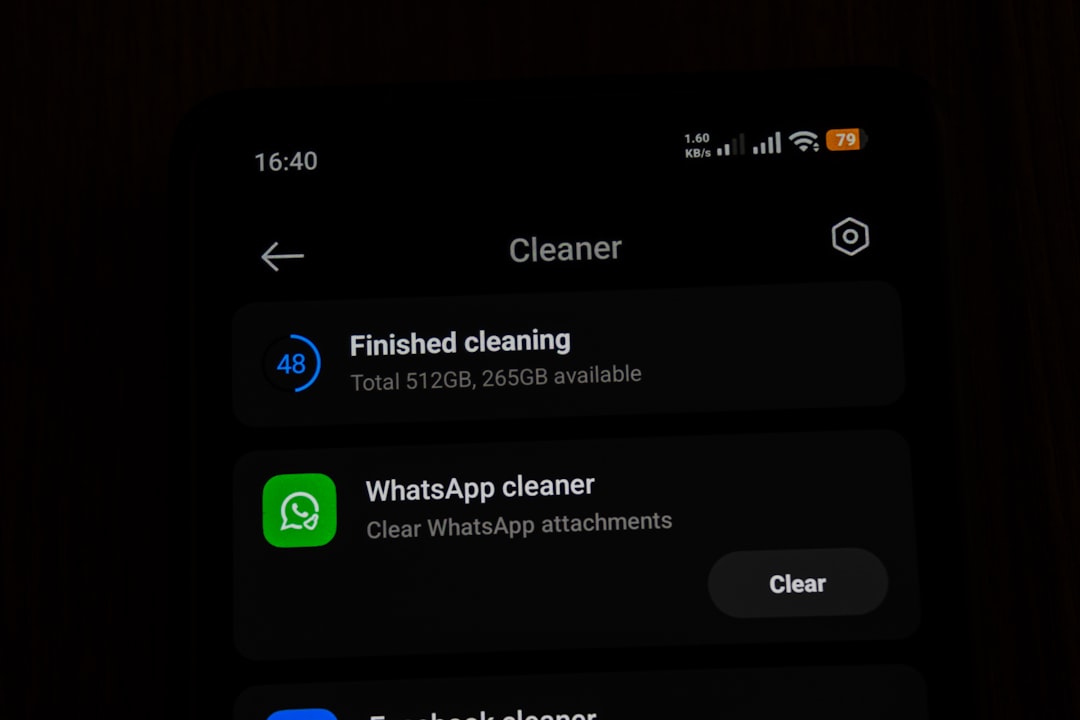
How to Clear Instagram Cache on Android
Android is the cleanest option. You can remove cached files without deleting the app or logging out.
- Open Settings on your Android phone.
- Tap Apps or Apps & notifications.
- Find and tap Instagram.
- Tap Storage or Storage & cache.
- Tap Clear cache.
Do not tap Clear data unless you want a deeper reset. Clear data can remove login sessions, app preferences, drafts, and local settings. Clear cache is safer.
After clearing cache, Instagram may take a few extra seconds to load images the first time you open it. That is normal. The app is rebuilding fresh temporary files.
How to Clear Instagram Cache on iPhone
iPhone handles cache in a less direct way. There is no simple Clear cache button for Instagram in iOS settings. Expect to waste time on this if you are used to Android.
You have two practical choices: offload Instagram or delete and reinstall it.
Option 1: Offload Instagram
Offloading removes the app but keeps its documents and data. It may reduce storage, but it may not wipe everything.
- Open Settings.
- Tap General.
- Tap iPhone Storage.
- Scroll down and tap Instagram.
- Tap Offload App.
- Reinstall Instagram from the same screen or the App Store.
This is useful if you want a lighter cleanup and want to keep app-related data where possible.
Option 2: Delete and Reinstall Instagram
This is the stronger iPhone method. It usually clears the most storage.
- Press and hold the Instagram app icon.
- Tap Remove App.
- Tap Delete App.
- Open the App Store.
- Download Instagram again.
- Log back in.
Before you delete the app, check if you have unsaved drafts. Reels drafts and post drafts can disappear when the app is removed. If a draft matters, save it to your device first.

Which Method Should You Use?
Use the method that matches your problem.
- Instagram search feels cluttered: clear recent searches inside Instagram.
- Links or in-app pages act strange: clear link history or browser data if available.
- Android storage is full: use Clear cache in Android app settings.
- iPhone storage is full: delete and reinstall Instagram for the biggest cleanup.
- Instagram is glitchy: clear cache, restart the phone, then update the app.
Will Clearing Cache Delete Your Instagram Account?
No. Clearing cache does not delete your account, posts, followers, messages, or saved collections. Those are stored on Instagram’s servers.
Still, local items can be affected. Drafts, partially edited posts, temporary downloads, and some preferences may vanish if you delete the app or clear app data. Cache clearing on Android is usually safe. Reinstalling on iPhone is more aggressive.
How Often Should You Clear Instagram Cache?
Most people do not need to do this weekly. Once every month or two is enough for normal use. Heavy users may need it more often.
If you watch Reels daily, manage multiple accounts, or open lots of product links, check storage every few weeks. A creator who posts five times a week may see Instagram grow from 1.2 GB to 6 GB in a month. That is not rare.
Best Quick Fix
If you want the fastest answer: Android users should tap Clear cache from the Instagram app storage screen. iPhone users should check iPhone Storage, then delete and reinstall Instagram if the app is taking several gigabytes. Instagram’s own settings are useful for tidying searches and link history, but they are not a full cache cleaner.
A clean cache will not make Instagram perfect. It may still lag, crash, or serve the same Reel twelve times. But it can free storage, remove stale files, and give the app a fresh start without much effort.