For most people, fre:ac is the best free MP3 converter because it is free, open source, fast, and built for batch audio work without pushing ads or account signups. MP3 remains practical because almost every phone, car stereo, browser, smart TV, editor, and podcast app can play it, and its old patent licensing program ended in 2017 [source: Fraunhofer]. If you only need one or two files converted, VLC is fine. If you need repeatable quality and serious control, fre:ac or FFmpeg is the better choice.
TLDR: Use fre:ac for everyday free MP3 conversion, Audacity when you need editing first, and FFmpeg when you want automation. For example, a creator converting 40 WAV voiceovers to 192 kbps MP3 could cut a folder from roughly 2.4 GB to about 550 MB, depending on source format and length. Cloud tools are convenient, but uploading private interviews, client calls, or unreleased music is not worth the risk unless you trust the service. VLC works, but its converter feels clunky when you process more than a few files.
What makes a good free MP3 converter?
A good converter should do four things well: preserve acceptable sound quality, process files quickly, support common input formats, and avoid shady behavior. That last point matters. Free media tools often come with confusing install screens, bundled offers, upload limits, or vague privacy policies.
For most users, the best MP3 settings are simple. Choose 192 kbps for speech, YouTube drafts, and casual music sharing. Pick 256 kbps or 320 kbps if you care more about music quality than file size. Use constant bitrate if you need predictable file sizes. Use variable bitrate if you want better quality at a similar size.
Best free MP3 converters compared
| Tool | Best for | Main strength | Main weakness |
|---|---|---|---|
| fre:ac | Batch conversion | Fast, open source, simple queue system | Interface looks dated |
| Audacity | Editing before export | Trim, clean, normalize, then export | Not ideal for large batch jobs |
| VLC Media Player | Occasional conversion | Already installed on many computers | Conversion menu is awkward |
| FFmpeg | Automation and scripts | Powerful, reliable, highly configurable | Command line only |
| CloudConvert | Browser-based conversion | No install needed | Uploads take time and privacy depends on the service |
1. fre:ac: best free MP3 converter overall
fre:ac is the safest recommendation for most users. It converts audio files to MP3, AAC, FLAC, WAV, and other formats. It supports batch conversion, CD ripping, metadata, and sensible output settings. It is also open source, which is reassuring if you dislike mystery installers.
The workflow is direct. Add files, choose MP3, set the bitrate, choose a destination folder, and start. It handles large folders better than VLC and feels less heavy than full editing software. Honestly, it feels like the tool many paid “audio converter” apps are trying to imitate, just with a less polished skin.
Best settings: choose MP3 LAME encoder, 192 kbps for voice, 256 kbps for general music, or 320 kbps for maximum compatibility and quality. For podcasts, 128 kbps mono can be enough if the recording is speech only.
2. Audacity: best when the file needs repair first
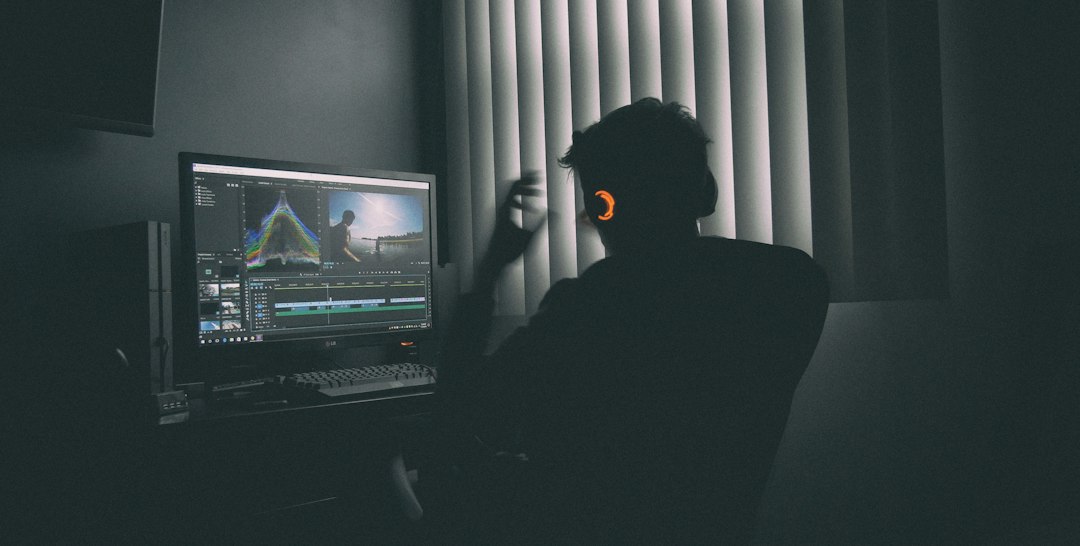
Audacity is not just a converter. It is an audio editor. That makes it useful when you need to trim silence, reduce noise, normalize volume, cut mistakes, or combine clips before exporting to MP3.
This is where Audacity beats basic converters. If a recording is too quiet or has 12 seconds of dead air at the start, converting it directly only preserves the problem. Audacity lets you fix the issue first. Then you export a cleaner MP3.
The downside is speed. Audacity is not the smoothest choice for converting 80 files in one sitting. Batch processing exists, but it is less friendly than fre:ac. It is best for careful work, not bulk file cleanup.
3. VLC: useful, but not pleasant for batch work
VLC can convert audio to MP3, and many people already have it installed. That makes it useful in a pinch. Open the conversion menu, add the file, pick an audio profile, and save the output.
The catch is the interface. VLC is brilliant as a media player, but the converter feels buried. Expect to waste time the first time you use it. On a typical laptop, getting from “open file” to “correct MP3 export path” can take 20 to 30 seconds longer than it should, mostly because the menu labels are not obvious.
Still, VLC is respectable for one-off jobs. It supports many input formats and has a strong reputation for playback compatibility. Its own documentation confirms support for converting and streaming media through its interface and commands [source: VLC documentation].
4. FFmpeg: best free tool for power users
FFmpeg is the most capable option here. It can convert almost anything to almost anything. It is used by developers, editors, archivists, streamers, and production workflows because it is stable and scriptable.
A basic MP3 conversion command looks like this:
ffmpeg -i input.wav -b:a 192k output.mp3For an entire folder, FFmpeg can be placed inside a script. That makes it excellent for recurring jobs. A podcast team, for example, could export WAV masters from an editor, then use FFmpeg to create MP3 versions for publishing in one repeatable step.
The main problem is usability. There is no friendly button panel unless you use a separate interface. You need to be comfortable with Terminal or Command Prompt. If that sounds annoying, use fre:ac instead. If you like control, FFmpeg is hard to beat. Its documentation lists extensive audio codec and format support [source: FFmpeg documentation].
5. CloudConvert and online MP3 converters: convenient, with limits
Browser-based converters are tempting. You upload a file, choose MP3, wait, and download the result. No install. No settings headache. For a small non-sensitive file, that can be perfectly fine.
But there are tradeoffs. Uploading a 700 MB WAV file may take longer than converting it locally. Some services limit daily minutes or file size. Others push subscriptions after a few conversions. More seriously, private audio leaves your computer. That matters for legal work, medical notes, client recordings, paid music, and unpublished interviews.
Use online converters only when the content is safe to upload and the file is small. If the audio contains personal, commercial, or confidential material, keep it offline.
Recommended tool by user type
- Students: Use VLC for quick single files or fre:ac for lecture batches.
- Podcasters: Use Audacity for cleanup, then export MP3 at 128 to 192 kbps.
- Musicians: Use fre:ac at 256 or 320 kbps for sharing drafts.
- Developers and editors: Use FFmpeg for repeatable folder conversion.
- Office workers: Use fre:ac for local conversion without uploading sensitive audio.
Quality settings that actually matter
Do not convert an already compressed MP3 into another MP3 unless you must. Each lossy conversion can reduce quality. If you have a WAV, AIFF, or FLAC source, convert from that original file instead.
For voice, 128 kbps is often acceptable. For mixed speech and music, 192 kbps is a safer default. For music, use 256 kbps or 320 kbps. Stereo is usually right for music. Mono can work well for speech and cuts the file size.
Also check volume. A technically valid MP3 can still sound bad if the source is too quiet, clipped, or noisy. Conversion does not fix a poor recording. It only changes the container and compression.
Security and privacy checklist
- Download from official sites only. Avoid software mirror pages with fake download buttons.
- Skip installers that offer extra apps. Those offers are rarely useful.
- Keep confidential files offline. Local tools are safer for private recordings.
- Save a master copy. Keep the original WAV, FLAC, or AIFF file before making MP3 versions.
- Test one file first. Check tags, volume, and playback before converting a full folder.
Final recommendation
Choose fre:ac if you want the best free MP3 converter for regular use. It is practical, private, and strong for batch jobs. Choose Audacity if the audio needs editing before export. Choose FFmpeg if speed, scripting, and precision matter more than a graphical interface.
VLC is worth keeping as a backup, not as your main conversion tool. Online converters are fine for small, non-private files, but they should not be your first choice for sensitive audio. The safest workflow is simple: edit if needed, convert locally, use the right bitrate, and keep the original file untouched.