The Surface Book 2 remains a popular Microsoft laptop because of its detachable display, premium build, and versatile performance. One small feature that many owners notice, however, is the keyboard backlight behavior. The backlight can turn off automatically, seem to dim unexpectedly, or fail to stay on as long as the user wants, which often leads to the question: does the Surface Book 2 keyboard backlight auto turn off?
TLDR: Yes, the Surface Book 2 keyboard backlight can auto turn off, mainly to save battery power and reduce unnecessary lighting when the keyboard is not being used. It is controlled by firmware, power management settings, and keyboard activity rather than by a simple always-on timer that users can fully customize. If the backlight turns off too quickly, the user can usually bring it back by pressing a key or adjusting the backlight level with the keyboard shortcut. In some cases, driver, firmware, or power issues may make the behavior seem inconsistent.
Does the Surface Book 2 Keyboard Backlight Turn Off Automatically?
The short answer is yes. The Surface Book 2 keyboard backlight is designed to turn off automatically after a period of inactivity. This is normal behavior and does not usually mean that the keyboard, battery, or Windows installation is defective.
Microsoft designed the Surface Book 2 as a portable device, and every power-consuming feature is managed carefully. The keyboard backlight uses a small amount of energy, but when combined with the display, processor, Wi-Fi, Bluetooth, and other hardware, even small savings matter. For that reason, the system may switch the light off when it detects that the keyboard has not been used for some time.
The exact timing may vary depending on the device state, power mode, battery level, Windows version, and firmware behavior. Some users may see the backlight fade or turn off after only a short pause, while others may notice that it stays lit longer when the laptop is plugged in.

Why the Keyboard Backlight Auto Turns Off
There are several reasons the Surface Book 2 keyboard backlight may turn off automatically. Most of them are intentional and part of the device’s normal power management system.
1. Battery Conservation
The most common reason is battery saving. The Surface Book 2 has both a display battery and a keyboard base battery on many models. Since it is designed for mobile use, Windows and Surface firmware try to reduce power draw whenever possible.
The keyboard backlight is useful in dark environments, but it is not necessary when the keyboard is idle. Turning it off helps extend battery life, especially when the device is running on battery power rather than being connected to the charger.
2. Low Keyboard Activity
The backlight is usually tied to keyboard interaction. If no keys are pressed for a while, the system assumes the user is reading, watching, or not actively typing. In that case, the backlight may shut off until another key is pressed.
This can be annoying when someone is working in a dark room and pauses to think, read notes, or watch a tutorial. When they return to typing, the keyboard may be dark until a key is pressed. This is expected behavior on many Surface devices.
3. Firmware-Level Control
Unlike some gaming laptops or business notebooks, the Surface Book 2 does not provide a detailed keyboard backlight timeout setting in Windows. Much of the behavior is controlled by Surface firmware, not by a visible Windows setting.
This means the user may not find an option such as “keep keyboard backlight on for 5 minutes” or “never turn off keyboard backlight.” The timeout and power logic are handled automatically by the system.
4. Power Mode Settings
Windows power modes can influence how aggressively the system saves energy. If the Surface Book 2 is set to a battery-saving mode, the backlight may turn off more quickly or behave more conservatively.
When the device is plugged in and set to a higher performance mode, the backlight may appear to stay active longer. However, this does not guarantee that it will stay on permanently.
5. Ambient Usage Conditions
The Surface Book 2 does not manage its keyboard backlight in exactly the same way as laptops with advanced ambient light controls, but the experience may still vary depending on usage conditions. If the screen brightness, power state, or sleep behavior changes, the keyboard lighting can change as well.
For example, if the laptop is waking from sleep, switching between tablet and laptop mode, or reconnecting the display to the keyboard base, the keyboard backlight may briefly act differently.
How to Turn the Surface Book 2 Keyboard Backlight On or Off
The Surface Book 2 keyboard backlight is controlled through the keyboard itself. The user can adjust it using the function key assigned to keyboard lighting. On many Surface Book 2 keyboards, this is the F7 key, which includes a small keyboard backlight icon.
Pressing the key cycles through different brightness levels, usually including:
- Off
- Low brightness
- Medium brightness
- High brightness
If the function keys are locked or behaving as standard function keys, the user may need to press Fn + F7 instead. The exact behavior can depend on the Fn key mode currently enabled.
If the keyboard backlight seems completely off, pressing the backlight key several times may restore it. If it still does not turn on, the issue may involve drivers, firmware, keyboard connection, or battery state.
Can the Keyboard Backlight Be Set to Stay On?
Many Surface Book 2 owners want the keyboard backlight to stay on continuously, especially when working at night. Unfortunately, the Surface Book 2 does not offer a built-in Windows setting that allows the keyboard backlight to remain on forever.
This is different from some laptops that include manufacturer control panels with detailed lighting options. The Surface Book 2 uses a cleaner, more automatic design, but that also means fewer customization options.
In most cases, the user can only adjust the brightness level, not the timeout duration. Even when set to the highest brightness, the light may still turn off automatically after inactivity.
In simple terms, the backlight level can be controlled, but the auto-off behavior generally cannot be fully disabled through normal settings.

When Auto Turn Off Is Normal
The keyboard backlight turning off is considered normal when:
- It turns back on after a key is pressed.
- The backlight key can still adjust brightness levels.
- The keyboard works normally for typing.
- The behavior is more noticeable while running on battery.
- The backlight works again after restarting or waking the device.
In these cases, there is usually no need for repair. The Surface Book 2 is simply managing power automatically.
When It Might Be a Problem
Although auto shutoff is normal, certain symptoms may suggest a problem. The user may need to troubleshoot if the backlight:
- Never turns on, even after pressing the backlight key.
- Only works randomly or flickers constantly.
- Turns off immediately after being enabled.
- Stops working after a Windows update.
- Fails only when the display is attached to the keyboard base.
- Works before login but not after Windows loads.
These symptoms may point to a software, driver, firmware, or hardware issue rather than normal power-saving behavior.
How to Fix Surface Book 2 Keyboard Backlight Issues
If the keyboard backlight turns off normally but comes back when typing, no fix is required. However, if it does not behave correctly, the following steps may help.
1. Check the Backlight Shortcut
The user should first press the keyboard backlight key several times. If nothing changes, they should try Fn + the backlight key. Sometimes the keyboard is simply set to the off brightness level.
2. Restart the Surface Book 2
A restart can reset temporary driver or firmware glitches. Since the Surface Book 2 has a detachable design, restart behavior can sometimes resolve issues between the tablet portion and the keyboard base.
3. Install Windows and Surface Updates
Microsoft releases firmware and driver updates for Surface devices through Windows Update. The user should go to:
- Settings
- Windows Update
- Check for updates
Installing all available updates can improve keyboard, battery, and firmware behavior.
4. Detach and Reattach the Display
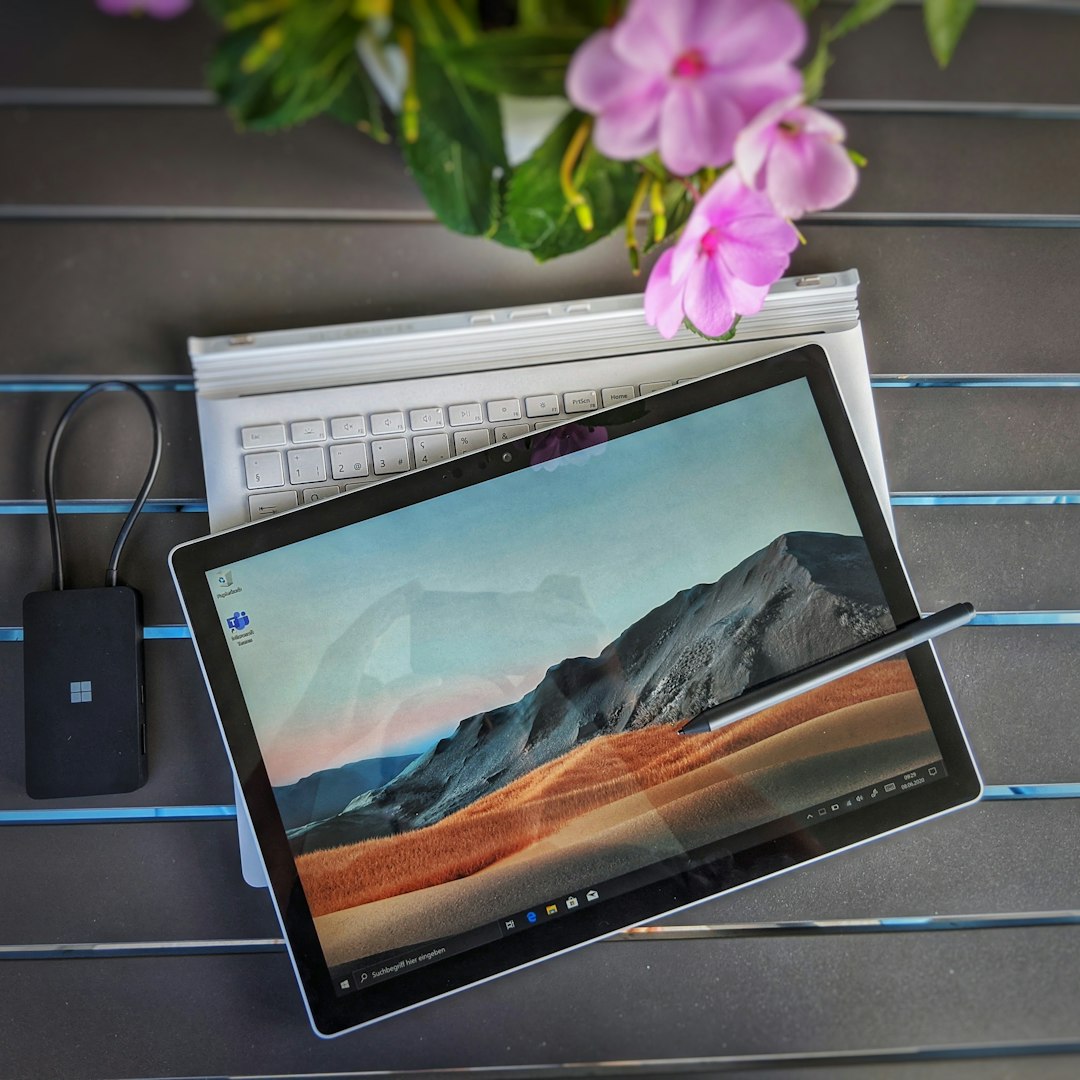
Because the Surface Book 2 uses a detachable screen, the keyboard base connection matters. If the backlight behaves strangely, the user can detach the display, inspect the connectors, and reattach it securely.
The connectors should be clean and free of dust or debris. A poor connection can sometimes affect keyboard features, including backlighting.
5. Adjust Power Mode
If the backlight turns off too quickly while on battery, the user can try changing the power mode. Selecting a more balanced or performance-oriented mode may make the device less aggressive with power conservation, although it may not remove the timeout completely.
6. Run the Surface Diagnostic Toolkit
Microsoft provides a Surface Diagnostic Toolkit that can check common device issues. It may help identify firmware, driver, or hardware problems affecting the keyboard base.
Why Microsoft Uses Auto-Off Backlighting
Microsoft’s design approach with Surface devices is focused on simplicity and battery efficiency. Instead of offering many advanced controls, Surface hardware often manages features automatically. This creates a more streamlined experience but can frustrate users who prefer manual control.
The keyboard backlight auto-off feature exists because it supports three priorities:
- Longer battery life during mobile use.
- Lower heat and power draw from unnecessary lighting.
- Automatic convenience without requiring constant user adjustment.
For most users, this behavior works in the background and is barely noticed. For users who type in low-light environments, however, the lack of a permanent always-on option can be inconvenient.
Practical Tips for Working in the Dark
If the keyboard backlight timing bothers the user, there are a few practical workarounds:
- Keep the keyboard backlight set to the highest comfortable brightness level.
- Tap a harmless key, such as Shift or Ctrl, to wake the backlight without typing text.
- Use a small desk lamp or monitor light in very dark rooms.
- Keep Windows and Surface firmware updated.
- Use the device plugged in when long nighttime typing sessions are expected.
These steps do not disable the auto-off function, but they can make the experience less disruptive.
Conclusion
The Surface Book 2 keyboard backlight does auto turn off, and in most cases, this is completely normal. It happens because the device is designed to conserve battery, reduce unnecessary power use, and manage lighting automatically through firmware and Windows power behavior.
While the brightness can be adjusted with the keyboard shortcut, the timeout itself usually cannot be fully customized or disabled through standard settings. If the light turns back on when a key is pressed, the system is likely working as intended. If it never turns on, flickers, or behaves unpredictably, updates, restarts, connector checks, and diagnostics may be needed.
FAQ
Does the Surface Book 2 keyboard backlight turn off by itself?
Yes. The Surface Book 2 keyboard backlight can turn off automatically after inactivity. This is usually normal power-saving behavior.
Can the Surface Book 2 keyboard backlight stay on all the time?
Not through a standard built-in setting. The user can adjust brightness, but the automatic timeout is generally controlled by firmware and power management.
Which key controls the Surface Book 2 keyboard backlight?
On many Surface Book 2 models, the keyboard backlight is controlled with the F7 key or Fn + F7, depending on the function key mode.
Why does the keyboard backlight turn off so quickly?
It may turn off quickly to conserve battery, especially when the device is not being actively used or is running in a battery-saving power mode.
Is the keyboard backlight broken if it turns off automatically?
No. If it turns back on after pressing a key or using the brightness shortcut, it is likely working normally.
What should be done if the keyboard backlight never turns on?
The user should try the backlight shortcut, restart the device, install Windows and Surface updates, detach and reattach the display, and check for possible keyboard base issues.
Does plugging in the Surface Book 2 stop the backlight from turning off?
Not always. Plugging in may reduce aggressive power saving, but the keyboard backlight can still turn off automatically after inactivity.
Can Windows settings change the keyboard backlight timeout?
Windows does not normally provide a specific keyboard backlight timeout setting for the Surface Book 2. The behavior is mostly automatic.