Finding your printer’s IP address is a practical troubleshooting skill, especially if you use a wireless or network printer at home or in an office. The IP address helps computers, phones, and other devices locate the printer on the network. You may need it when adding a printer manually, fixing connection problems, accessing printer settings, or confirming that the device is connected to the correct network.
TLDR: You can usually find your printer’s IP address from the printer’s own display menu, by printing a network configuration page, or by checking your router’s connected devices list. On Windows and macOS, the IP address may also appear in the printer settings. If your printer keeps changing IP addresses, consider assigning it a static IP address or reserving one through your router.
Why Your Printer’s IP Address Matters
A printer’s IP address is a unique number assigned to it on your local network, such as 192.168.1.45. This address allows other devices on the same network to send print jobs to the correct machine. Without it, your computer may not be able to identify the printer reliably, particularly if automatic discovery fails.
Knowing the IP address is useful when you need to:
- Add a printer manually to Windows, macOS, or a mobile device.
- Open the printer’s web interface to change settings or check ink and toner levels.
- Troubleshoot network issues when print jobs fail or the printer appears offline.
- Confirm network placement, especially in offices with multiple Wi-Fi networks.

Method 1: Check the Printer’s Display Menu
If your printer has a built-in screen, this is often the fastest method. The exact wording varies by manufacturer, but most printers store network details in a settings or connectivity menu.
On the printer, look for menus such as:
- Settings
- Network
- Wireless
- Wi-Fi Status
- TCP/IP
- Network Information
Once inside the network section, look for a field labeled IP Address, IPv4 Address, or something similar. Write it down exactly as shown. A typical home or small office printer IP address begins with 192.168, 10, or 172.
If you do not see an IP address, confirm that the printer is connected to Wi-Fi or Ethernet. A printer that is not connected to a network may show no IP address, or it may display an error such as not connected.
Method 2: Print a Network Configuration Page
Most network printers can print a report that lists connection details, including the current IP address. This is a reliable method because it does not require access to a computer.
The page may be called one of the following:
- Network Configuration Page
- Network Status Sheet
- Wireless Test Report
- Printer Settings Report
- Configuration Summary
To print it, open the printer’s control panel and search under Settings, Reports, Tools, or Network. Some printers also allow you to print the report by holding specific buttons, such as the Wi-Fi button or information button, for several seconds. If you are unsure, consult the printer’s user manual or support page for your exact model.
After printing the report, look for IPv4 Address or IP Address. Be careful not to confuse it with the MAC address, which is a hardware identifier made of letters and numbers, often separated by colons.
Method 3: Find the Printer IP Address in Windows
Windows can often show the IP address of a printer that has already been installed. This is especially useful if the printer works on one computer but must be added to another.
On Windows 10 or Windows 11:
- Open Settings.
- Go to Bluetooth & devices, then select Printers & scanners.
- Choose your printer from the list.
- Select Printer properties or Printer preferences.
- Open the Ports tab.
In the list of ports, look for a port that resembles an IP address, such as 192.168.1.45. If the port name is not obvious, select the active port and click Configure Port. The IP address may appear under Printer Name or IP Address.
If the printer was installed using a manufacturer’s app or a discovery protocol, Windows may show a name instead of an IP address. In that case, use the router method or print a configuration page for a clearer result.
Method 4: Find the Printer IP Address on macOS
On a Mac, the printer’s IP address may be available through the Printers & Scanners settings, depending on how the printer was added.
Follow these steps:
- Open System Settings or System Preferences.
- Select Printers & Scanners.
- Click the printer you want to check.
- Open Options & Supplies or printer details.
- Look for a Location, URL, or network address field.
If the printer was added using AirPrint, macOS may not display the IP address directly. You can still find it by printing a network report from the printer or checking your router’s connected devices list.
Method 5: Check Your Router’s Connected Devices
Your router keeps a list of devices currently connected to the network. Because your printer must connect through the router, this list is one of the most dependable places to find its IP address.
To check the router:
- Open a web browser and enter your router’s address, commonly 192.168.1.1 or 192.168.0.1.
- Sign in using the router administrator credentials.
- Look for a section called Connected Devices, Device List, Clients, or DHCP Table.
- Find your printer by its name, manufacturer, or MAC address.
- Read the IP address listed next to it.
This method may require some care if several devices are connected. Printer names can appear as model numbers, manufacturer names, or generic network device names. If necessary, compare the MAC address from the printed network report with the MAC address shown in the router.
Method 6: Use the Printer’s Web Interface
Once you know the IP address, you can usually enter it into a browser to open the printer’s embedded web page. For example, type http://192.168.1.45 into the address bar. This page often displays printer status, supply levels, network settings, firmware information, and security options.
This does not help if you do not yet know the IP address, but it is useful for confirming that the address is correct. If the page opens, your device can communicate with the printer over the network.
What If the Printer Has No IP Address?
If you cannot find an IP address anywhere, the printer may not be connected to the network. Check the basics first:
- Make sure the printer is powered on and not in an error state.
- Confirm that Wi-Fi is enabled on the printer.
- Verify that the printer is connected to the correct network name.
- If using Ethernet, check that the cable is firmly connected.
- Restart the printer and router, then check again.
A printer connected only by USB to a computer typically does not have its own network IP address. In that setup, the computer handles communication with the printer. If you want the printer to be available to multiple devices, connect it directly to Wi-Fi or Ethernet if the model supports networking.
Static IP Address vs. Dynamic IP Address
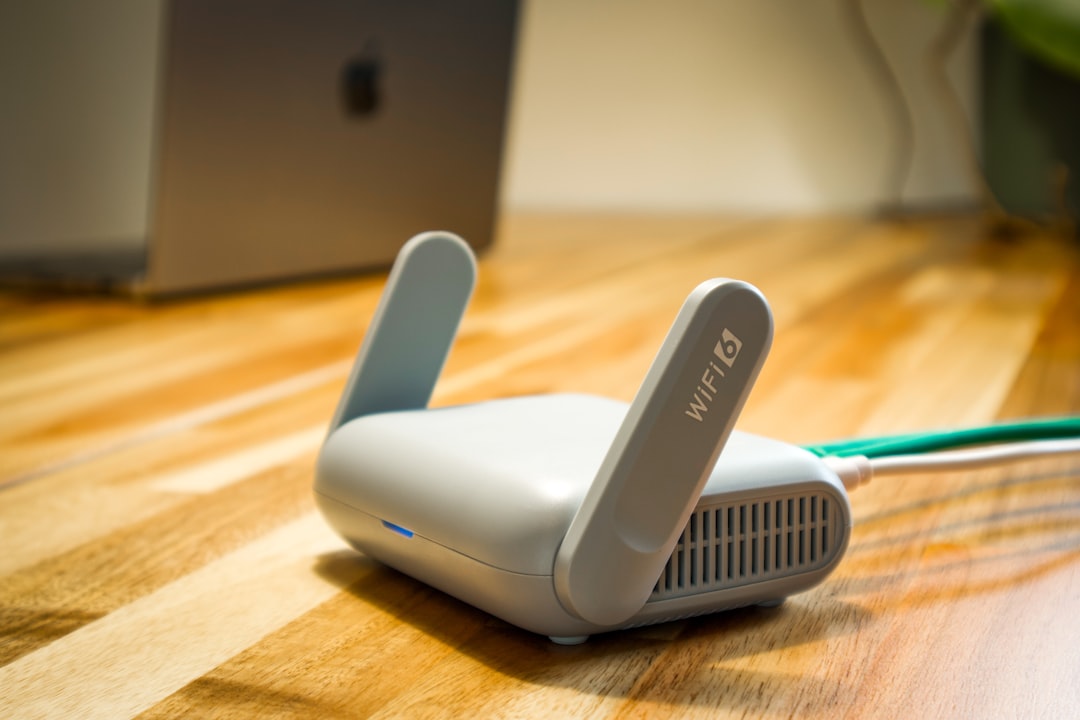
Most routers assign printer IP addresses automatically using DHCP. This is convenient, but the address can occasionally change. When that happens, computers configured with the old address may show the printer as offline.
For a more stable setup, consider using a DHCP reservation in your router. This tells the router to give the same IP address to the printer every time it connects. It is usually safer than manually setting a static IP address on the printer, because the router remains in control of address assignments.
If you do set a static IP address manually, choose an address that does not conflict with other devices. Also record the subnet mask, gateway, and DNS settings correctly. Incorrect network settings can prevent the printer from connecting.
Final Checks
After finding the IP address, test it by opening a browser and entering the address, or by adding the printer manually using that IP. If the printer responds, the address is correct. If it does not, confirm that your computer and printer are on the same network and that no firewall, guest Wi-Fi isolation, or router setting is blocking communication.
Finding a printer’s IP address is usually straightforward once you know where to look. Start with the printer’s display or network report, then check your computer or router if needed. For long-term reliability, reserve the printer’s IP address in the router so your devices can continue finding it without interruption.