For MacBook owners who have grown used to the display notch as a passive piece of hardware, NotchNook presents a different idea: turning that unused visual space into a small, interactive productivity hub. The app is designed for macOS users who want faster access to controls, files, widgets, and quick actions without cluttering the desktop or opening multiple menus. This review explores how NotchNook works, which features stand out, where it succeeds, and where it may fall short for certain users.
TLDR: NotchNook is a polished macOS utility that transforms the MacBook notch area into a Dynamic Island-style control center. It offers useful features such as media controls, file storage, quick access panels, and a sleek interface. Its biggest strengths are convenience, visual design, and workflow enhancement, while its limitations include pricing, occasional learning curve, and varying usefulness depending on the user’s habits.
What Is NotchNook?
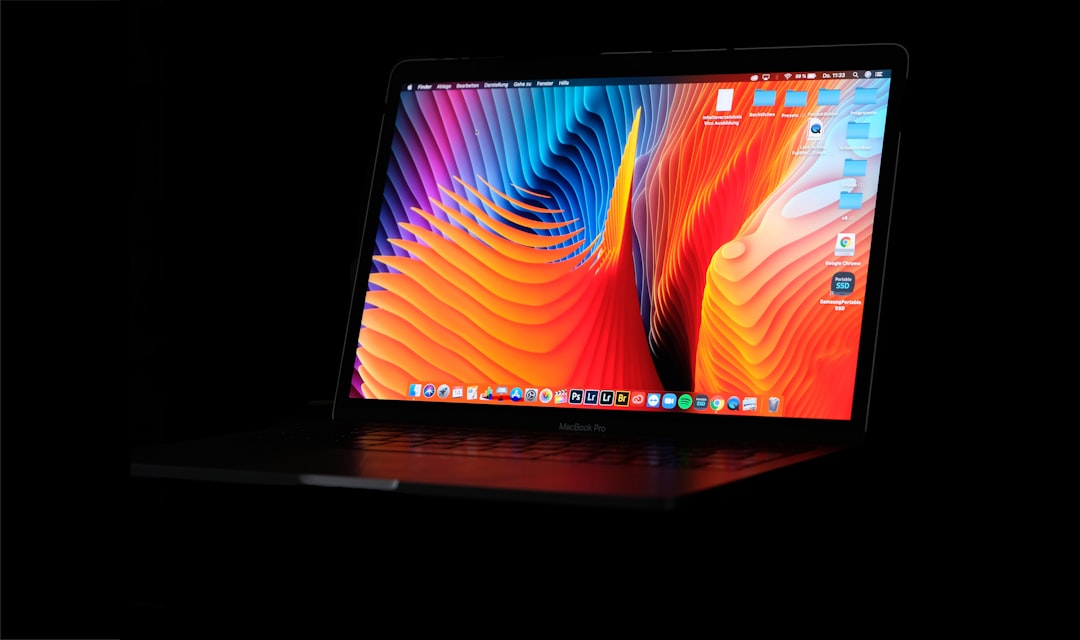
NotchNook is a macOS app that expands the area around the MacBook notch into an interactive panel. Instead of treating the notch as wasted space, the app uses it as an anchor for a compact interface that can open when needed and stay hidden when not in use. It is especially aimed at users with newer MacBook models that include a notch, although some setups may allow a similar experience on displays without one.
The concept is familiar to anyone who has seen Apple’s Dynamic Island on iPhone, but NotchNook is tailored for desktop workflows. It is less about notifications and more about quick access. The app can become a place for media controls, temporary files, clipboard-like interactions, calendar access, shortcuts, and other small productivity tools.
Interface and User Experience
One of NotchNook’s strongest qualities is its visual presentation. The interface feels modern, minimal, and intentionally designed to blend with macOS. When activated, the nook expands smoothly from the notch area, creating the impression that the notch has become a functional part of the operating system rather than an interruption in the display.
The animation and layout are important because a utility like this can become annoying if it feels too intrusive. NotchNook generally avoids that problem by keeping its panel compact and focused. It does not try to replace the menu bar, Dock, or Control Center. Instead, it offers a secondary layer of access for actions that benefit from being close at hand.
The app’s usability depends heavily on how often the user is willing to interact with the top center of the screen. For users who already rely on keyboard shortcuts or Spotlight, NotchNook may not immediately feel essential. However, for users who prefer visual tools and quick panels, it can quickly become part of the daily workflow.
Key Features of NotchNook
1. Dynamic Notch Panel
The core feature is the expandable notch panel. It opens around the notch and provides a dedicated space for tools and controls. This design makes the app feel native to MacBook hardware, especially on devices where the notch is otherwise only a visual cutout for the camera housing.
The panel can be used for quick interactions without launching full apps. This helps reduce window switching and keeps small tasks contained in one place.
2. Media Controls
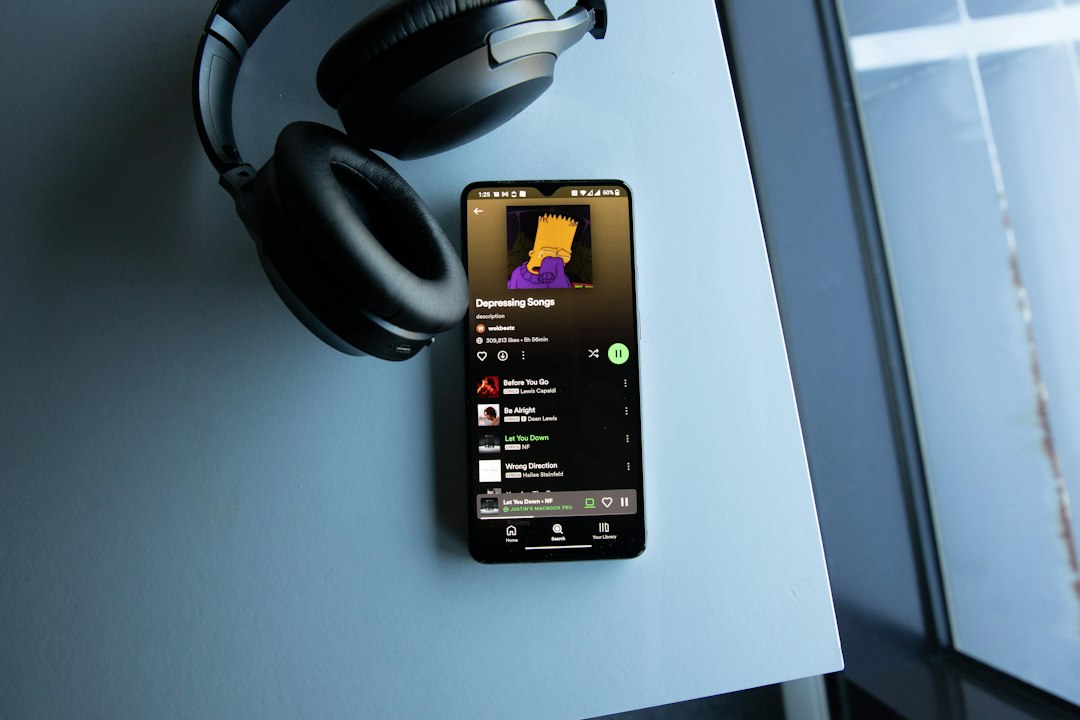
NotchNook is particularly useful for media playback. It can provide quick access to play, pause, skip, and track information, depending on the media source and system permissions. For users who listen to music, podcasts, or videos while working, this can be more convenient than opening the Music app, Spotify, a browser tab, or Control Center.
The media control experience is also visually appealing. Album art and playback details can make the notch area feel alive and informative without overwhelming the screen.
3. File Tray and Temporary Storage
Another practical feature is the ability to use NotchNook as a temporary file tray. Users can place files in the nook area and access them again quickly. This is useful when moving files between folders, dragging attachments into emails, organizing downloads, or keeping frequently used files within reach for a short period.
This feature may not replace dedicated file managers or clipboard tools, but it provides a clever middle ground. It is especially useful for people who frequently drag and drop items across apps.
4. Calendar and Quick Information
NotchNook may also include quick access to calendar-style information or small glanceable widgets, depending on the version and configuration. The benefit is simple: the user can check useful information without opening Calendar, Notification Center, or a separate productivity app.
This makes NotchNook helpful for users who prefer lightweight context. Instead of interrupting a task by switching apps, a quick glance can provide enough information to keep working.
5. Customization Options
Customization is an important part of any macOS utility, and NotchNook offers settings that allow users to adapt the experience to their preferences. Users may be able to adjust activation behavior, visual appearance, included modules, and related interactions.
This flexibility matters because not everyone wants the same type of notch experience. Some users may want media controls only, while others may prefer file handling or productivity widgets. A strong utility should avoid forcing every feature into the user’s workflow, and NotchNook performs best when it is configured intentionally.
Performance and Reliability
In regular use, NotchNook is designed to feel lightweight. Since it serves as a background utility, performance matters. A tool that runs constantly should not drain battery, consume excessive memory, or interfere with normal macOS behavior.
For most users, the app should feel smooth and responsive. However, like many interface-enhancing utilities, its performance may vary depending on the Mac model, macOS version, connected displays, and other menu bar or window management apps running at the same time. Users who rely on many system utilities may need to test whether NotchNook fits cleanly into their setup.
Because NotchNook modifies how the user interacts with a visible hardware area, small bugs or animation issues may be more noticeable than they would be in a traditional background app. That does not make the app unreliable, but it does mean polish is especially important.
Pros of NotchNook
- Creative use of the MacBook notch: NotchNook turns an otherwise passive design element into something functional and interactive.
- Polished visual design: The interface feels modern and fits well with the macOS aesthetic.
- Useful media controls: Quick playback access is one of the app’s most practical everyday features.
- Convenient file tray: Temporary file storage can improve drag-and-drop workflows and reduce desktop clutter.
- Compact and non-intrusive: The panel stays out of the way when not needed, which helps maintain focus.
- Good for visual workflows: Users who prefer interactive panels over keyboard commands may find it especially helpful.
Cons of NotchNook
- Not essential for everyone: Users who already rely on keyboard shortcuts, Spotlight, or automation tools may not need it.
- Best suited to notched MacBooks: The concept is most compelling on MacBook models with a notch.
- May require habit changes: The user has to remember to use the notch area as part of the workflow.
- Potential compatibility concerns: As with many macOS utilities, behavior may vary across macOS updates or multi-display setups.
- Pricing may be a factor: Users who only want one or two features may hesitate if they do not see daily value.

Who Should Use NotchNook?
NotchNook is best suited for MacBook users who enjoy interface customization and want to make better use of the notch area. It is especially appealing to people who frequently manage media playback, drag files between apps, or prefer quick visual controls over menu diving.
Creative professionals, students, writers, and productivity enthusiasts may appreciate the way it consolidates small actions into a single accessible space. It can also be a good fit for users who like the idea of Apple’s Dynamic Island and want something similar on macOS.
On the other hand, NotchNook may be less valuable for users who keep workflows extremely keyboard-driven. If a user already triggers everything through Alfred, Raycast, Shortcuts, or hotkeys, NotchNook may feel more decorative than necessary. Its value depends on whether the notch panel becomes a natural part of daily work.
Is NotchNook Worth It?
NotchNook is worth considering if the user wants a more interactive and personalized MacBook experience. Its biggest advantage is not that it introduces completely new functions, but that it places several useful functions in a clever and accessible location. The app is at its best when it reduces small interruptions: changing a song, holding a file temporarily, checking quick information, or accessing a control without opening another window.
The app’s value will depend on usage frequency. If the user interacts with it many times throughout the day, it can feel like a smart productivity upgrade. If it is only opened occasionally, it may feel more like a stylish novelty. For that reason, anyone interested in NotchNook should test it in a real workflow rather than judging it only by screenshots or demos.
Final Verdict
NotchNook is a clever, attractive, and genuinely useful macOS utility for the right type of user. It succeeds by transforming the MacBook notch from a passive design compromise into a functional interaction point. Its media controls, file tray, smooth interface, and quick-access design make it more than just a visual gimmick.
However, it is not a must-have for every Mac user. Its usefulness depends on how much the user values visual quick-access tools and whether the notch area fits naturally into the workflow. For MacBook owners who enjoy refined utilities and want to get more from their screen design, NotchNook is a strong option. For users who prefer minimal system modifications, it may be interesting but not essential.
FAQ
What does NotchNook do?
NotchNook turns the MacBook notch area into an interactive panel for quick controls, media playback, file handling, and other useful tools.
Is NotchNook only for MacBooks with a notch?
It is primarily designed for notched MacBook models, where the concept feels most natural. Some users may be able to use similar functionality on other displays, but the experience is strongest on MacBooks with a notch.
Does NotchNook replace the macOS menu bar?
No. NotchNook does not replace the menu bar. It acts as an additional quick-access layer for selected tools and actions.
Is NotchNook good for productivity?
It can improve productivity for users who frequently use media controls, drag-and-drop files, or want quick access to small tools. Its productivity value depends on whether it becomes part of the user’s daily routine.
Does NotchNook slow down a Mac?
NotchNook is intended to run as a lightweight utility. However, performance can depend on the Mac model, macOS version, and other background apps.
Is NotchNook worth paying for?
It may be worth paying for if the user regularly benefits from its quick-access features. Those who are unsure should try it first, if a trial or demo option is available.
Who should avoid NotchNook?
Users who prefer a very minimal macOS setup, rely almost entirely on keyboard shortcuts, or do not like interface-enhancing utilities may not find NotchNook necessary.