Use VEED if you need precise framing plus editing tools; use Clideo if you only need a quick crop with fewer distractions. Cropping video online is now a routine job for marketers, teachers, creators, and support teams, especially since 91% of businesses use video as a marketing tool [source: Wyzowl]. The right choice depends on how much control you need after the crop. If the video must be resized, subtitled, branded, and exported for several platforms, VEED is usually the stronger pick.
TLDR: VEED is better for polished social videos because it combines cropping with aspect ratio presets, captions, overlays, and timeline editing. Clideo is better for a simple one-off crop when you do not want a heavier editor. For example, a small ecommerce team cropping 30 product clips per month could save roughly 45 to 90 minutes by using VEED presets for TikTok, Shorts, and Instagram Reels instead of repeating manual settings. If you only crop two or three videos a month, Clideo may feel faster and less annoying.
What video cropping really does
Cropping is not the same as trimming. Trimming cuts time from the start or end of a clip. Cropping cuts the visible frame. You use it to remove black bars, hide messy edges, center a speaker, or convert a horizontal video into a vertical one.
This matters because poor framing makes even good footage look careless. A product demo with too much empty desk space feels weak. A webinar clip where the speaker is stuck in the corner feels unfinished. A phone recording with the wrong aspect ratio can look awkward on social platforms.

VEED: best for controlled, polished framing
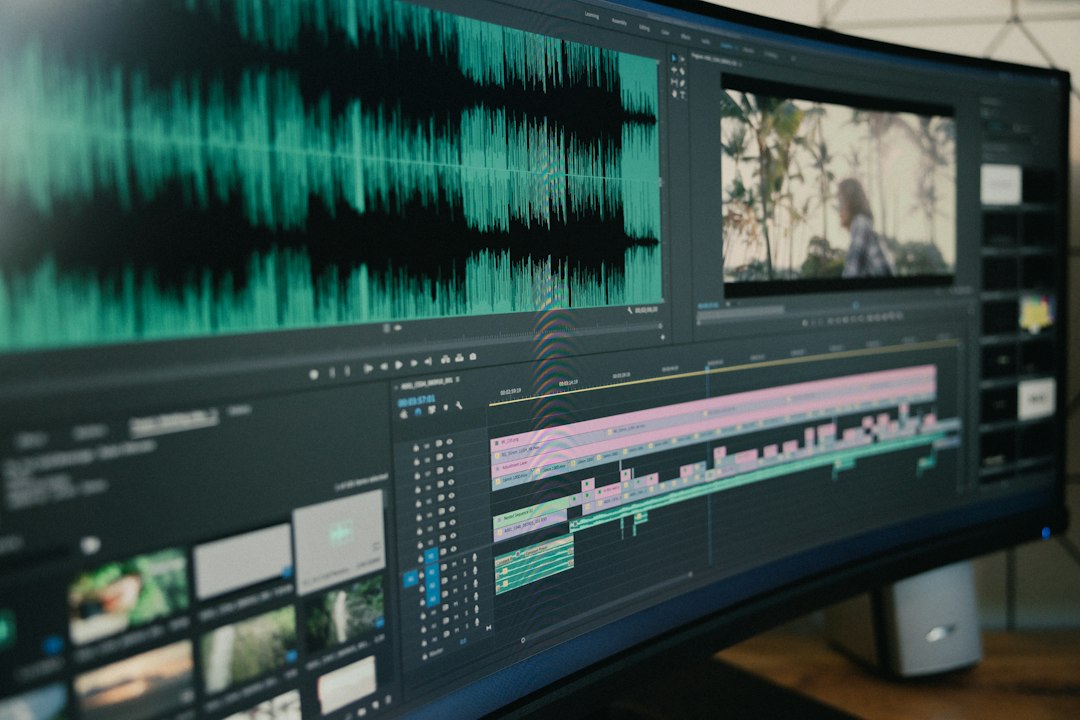
VEED is a browser-based video editor, not just a cropper. That is its main advantage. You can upload a clip, select the video, open crop or resize controls, and frame the subject for common formats such as 1:1, 9:16, 16:9, and 4:5. These ratios cover most everyday publishing needs.
The practical benefit is simple. You can crop once, then keep working. Add subtitles. Place a logo. Blur a background. Add text. Cut pauses. Export a version for YouTube, then another for Instagram or TikTok. This reduces tool switching, which is where a lot of time gets wasted.
VEED works best when:
- You need vertical clips for TikTok, Reels, or Shorts.
- You want subtitles after cropping.
- You need brand elements, text, progress bars, or overlays.
- You are repurposing one long video into several short clips.
- You care about exact framing and repeatable aspect ratios.
Honestly, it feels like VEED is built for people who know a simple crop will not stay simple. A “quick edit” often turns into captions, resizing, logo placement, and one more export. VEED handles that better than a basic crop page.
The downside is that VEED can feel heavier than necessary if all you want is to remove a thin strip from the side of a clip. More buttons mean more chances to click the wrong panel. Free exports may also include limits or watermarks, depending on the current plan. Always check the export screen before you commit to a workflow.
Clideo: best for fast, simple cropping
Clideo’s video cropper is more direct. You upload a file, choose a crop area or preset ratio, preview it, and export. That is the appeal. It does not try to be a full editing suite on every step.
For basic work, that is refreshing. If a coworker sends a screen recording with browser tabs showing at the top, Clideo can cut them out quickly. If a video has black edges from a bad export, Clideo can clean the border. If you need a square crop for a profile post, the process is easy enough for non-editors.
Clideo works best when:
- You only need to crop one short video.
- You want a clean, guided interface.
- You do not need subtitles or timeline effects.
- You are fixing framing errors, not building a full post.
- You prefer a tool with fewer editing choices.
The catch is that simplicity can turn into friction when your task grows. Need captions? Need a branded ending? Need several versions for different channels? Expect to waste time moving files between tools. It drives me crazy when a cropper solves the first 70% of the job but leaves the last 30% scattered across other apps.

VEED vs. Clideo: side-by-side comparison
| Feature | VEED | Clideo |
|---|---|---|
| Best use | Full social video editing | Quick one-task cropping |
| Ease of use | Easy, but more panels | Very simple |
| Aspect ratio presets | Strong for social formats | Good for common formats |
| Extra editing | Subtitles, text, audio, branding, timeline edits | More limited and task-based |
| Best for teams | Better for repeat workflows | Better for occasional fixes |
| Free plan concerns | Check watermark, quality, and duration limits | Check watermark, file size, and export limits |
How to crop a video online in VEED
- Open VEED and upload your video.
- Select the clip on the canvas or timeline.
- Choose a crop or resize option.
- Pick an aspect ratio, such as 9:16 for vertical social video or 16:9 for YouTube.
- Drag the frame until the subject sits in the right position.
- Preview the full video, not just the first frame.
- Add subtitles, text, or branding if needed.
- Export and review the final file before posting.
A useful rule: keep faces and key products away from the edges. Platform controls, captions, and profile icons can cover the lower or side areas of a vertical video. Centering the subject is safer, but do not make every crop too tight. Leave breathing room.
How to crop a video online in Clideo
- Open Clideo’s crop video tool.
- Upload the file from your device or supported storage source.
- Select a preset ratio or adjust the crop box manually.
- Move the frame to keep the subject visible.
- Preview the result.
- Export the cropped video.
For a simple correction, this is usually enough. The main thing is to preview motion. A crop that looks perfect at second one may cut off hands, slides, or product labels later. Watch the full clip if it is short. For longer videos, check several points across the timeline.
Which tool gives better framing?
VEED gives better framing control for serious publishing. It is not only about the crop box. It is about seeing the crop inside a broader edit. You can add captions and check whether they cover the speaker. You can place a logo and adjust the frame around it. You can make different versions without starting over each time.
Clideo gives better speed for simple tasks. If your only goal is to remove a border or convert one clip into a square, it does the job with less visual noise. That matters when the user is not a video editor.

Privacy and upload concerns
Both tools run online, so your video must be uploaded to a server for processing. That is normal for browser editors, but it still matters. Do not upload confidential footage, customer records, legal material, or unreleased product videos unless you have checked the tool’s current privacy policy and account settings.
For public marketing clips, this is usually acceptable. For internal training, medical, legal, or finance content, use extra caution. A local desktop editor may be safer when the content is sensitive.
Best choice for common users
- Solo creator: Choose VEED if you post often. Choose Clideo for rare fixes.
- Small business: VEED is stronger because branding, subtitles, and resizing save time.
- Teacher or trainer: Clideo is fine for quick lecture crops. VEED is better for polished course clips.
- Marketing team: VEED is the safer choice for repeatable output across platforms.
- Casual user: Clideo is easier if you just need one clean crop.
Final verdict
Choose VEED when the cropped video must look ready for publication. It gives you stronger control, better social formatting, and useful editing tools around the crop. Choose Clideo when you want a fast, focused crop and do not need much else.
The most reliable workflow is simple: crop for the final platform, preview the full clip, check captions and edge spacing, then export. Good framing is not decoration. It decides whether the viewer sees the subject clearly or scrolls past.