Use Kapwing when you want clean captions fast, and use EZGIF when you want a tiny, free, no-login tool for simple text overlays. Captions make GIFs easier to understand in silent feeds, chat apps, help docs, and product posts. That matters because many people watch short visual content without audio; one widely cited report said 85% of Facebook video views happened with sound off [source: Digiday]. GIFs usually have no sound anyway, so the caption is often the whole joke, instruction, or sales pitch.
TLDR: If you need polished captions, brand fonts, resizing, and quick social exports, Kapwing is the better pick. If you only need to slap text on a GIF without signing in, EZGIF is faster and lighter. For example, a support team making 20 short tutorial GIFs per week may save several minutes per file with Kapwing templates, while a meme page posting one quick reaction GIF can finish in EZGIF in under two minutes. Choose based on how often you edit, not just which tool is free.
Why captions make GIFs more engaging
A GIF without text can be funny, but it can also be vague. A facial reaction, a screen recording, or a product loop can lose meaning when the viewer has no context. Captions fix that in one glance.
Good captions can:
- Explain the action in a screen recording.
- Add punchlines to reaction GIFs.
- Highlight a feature in a product demo.
- Make content easier to scan in social feeds.
- Help viewers understand the GIF without extra text around it.
The best caption is short. Think five to eight words. A GIF loops quickly, so the viewer should not feel like they are reading a paragraph taped to a moving image.

EZGIF: best for quick, no fuss captions
EZGIF feels old-school, but that is part of its charm. It loads quickly, works in the browser, and does not bury the basic tools under a glossy interface. If you have one GIF and one line of text, it gets the job done.
To add captions in EZGIF:
- Go to the EZGIF GIF editor or text tool.
- Upload your GIF from your computer or paste a URL.
- Choose the write or text option.
- Enter your caption.
- Pick font size, color, position, and timing if needed.
- Preview the result.
- Save and download the edited GIF.
EZGIF is great when speed matters more than style. You can add a white caption with a black outline, place it at the top or bottom, and move on. There is no bloated project dashboard. No timeline that tries to be a full video editor. No branding maze.
The catch is that EZGIF can feel clunky when your caption needs precision. Moving text frame by frame is not fun. Styling options are limited. If you want modern subtitle blocks, custom fonts, safe margins, or team templates, expect to waste time clicking around and previewing again and again.
EZGIF pros
- Free and browser based. No software install needed.
- No account required for basic editing.
- Fast for simple text.
- Useful extra tools for cropping, resizing, optimizing, and splitting GIFs.
EZGIF cons
- Interface feels dated.
- Caption styling is basic.
- Not ideal for multi caption edits.
- Manual timing can get annoying on longer GIFs.
Kapwing: better for polished captions and social content
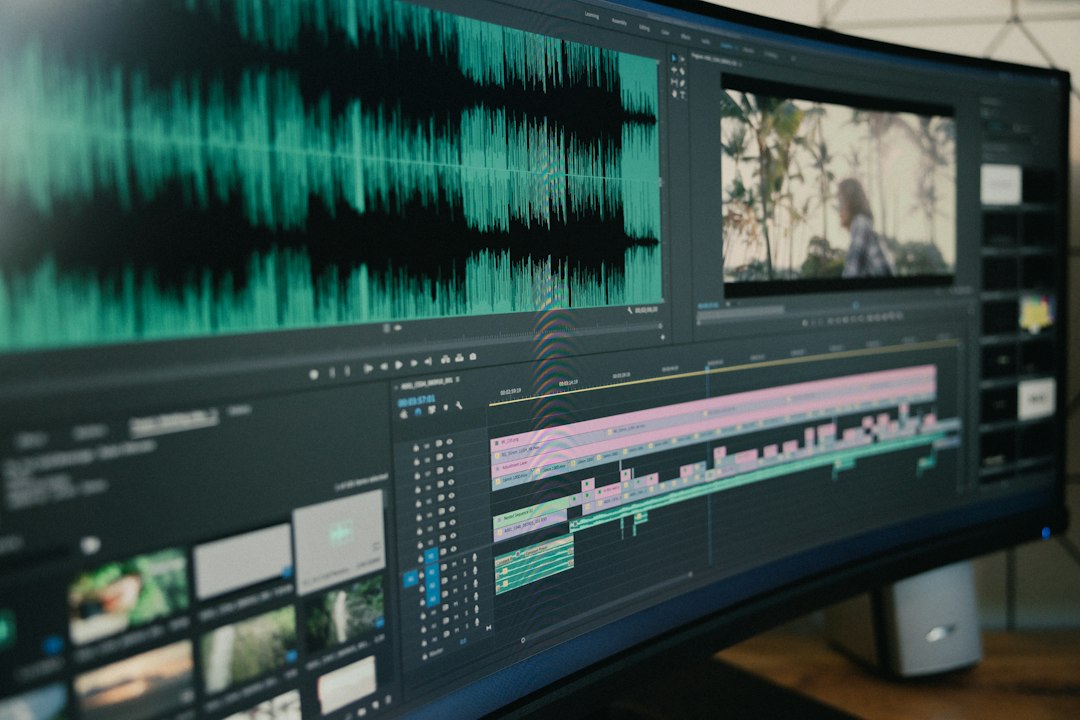
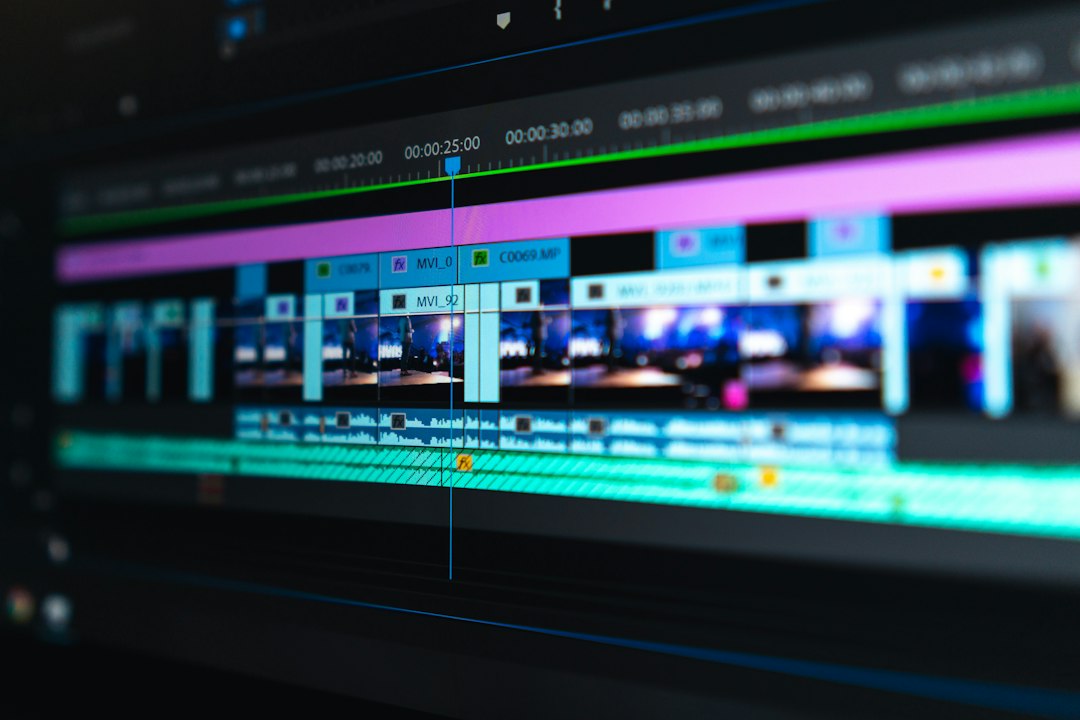
Kapwing is closer to a modern online video editor. It treats your GIF like a small video project. That makes it better for anyone creating branded content, ads, tutorials, social posts, or recurring formats.
To add captions in Kapwing:
- Open Kapwing and start a new project.
- Upload your GIF.
- Add a text layer or use the captions tool if your file has speech from a video source.
- Style the text with font, size, color, outline, background, and placement.
- Adjust timing on the timeline.
- Resize for TikTok, Instagram, X, LinkedIn, or a website.
- Export as a GIF or video, depending on your goal.
Kapwing shines when captions need to look intentional. You can create bold meme text, neat tutorial labels, or branded callouts. The timeline also makes it easier to show different captions at different moments.
Honestly, it feels like Kapwing asks you to enter a bigger editing room than you may need. For one throwaway GIF, that can be overkill. Uploading, processing, exporting, and dealing with account limits can take longer than the edit itself. But for repeat work, the cleaner controls often pay off.
Kapwing pros
- Modern caption controls with better layout options.
- Timeline editing for multiple text moments.
- Brand friendly design with fonts, colors, and templates.
- Easy resizing for social platforms.
- Better for teams and repeat content workflows.
Kapwing cons
- May require an account for saving or exports.
- Free plans can include limits or watermarks, depending on current pricing.
- Heavier than EZGIF for simple edits.
- Processing can feel slow for larger files.
EZGIF vs. Kapwing: quick comparison
| Feature | EZGIF | Kapwing |
|---|---|---|
| Best for | Simple captions and quick fixes | Styled captions and social content |
| Ease of use | Simple but dated | Modern but more steps |
| Text styling | Basic | Much stronger |
| Timing control | Limited and manual | Timeline based |
| Best user | Meme makers, bloggers, casual users | Marketers, creators, educators, teams |
Which one should you choose?
Pick EZGIF if your caption is simple. For example, you have a reaction GIF and want text that says “Me after one meeting”. Upload, place the caption, export, done. It is the tool for quick jobs and low patience.
Pick Kapwing if the GIF needs to look like part of a campaign, tutorial, or brand post. It is better for captions such as “Step 1: Upload your file”, then “Step 2: Choose a template”, then “Step 3: Export”. That timing control makes the content clearer.
If you post often, Kapwing usually wins. If you edit once in a while, EZGIF is hard to beat.
Caption tips that work in both tools
- Use high contrast. White text with a dark outline works almost everywhere.
- Keep captions short. Long lines get ignored.
- Place text away from key action. Do not cover faces, buttons, or product details.
- Use one idea per caption. A GIF moves too fast for clutter.
- Preview the loop. The caption should still make sense when the GIF restarts.
- Compress after editing. Big GIF files load slowly and get skipped.
Final verdict
EZGIF is the best choice for fast, free, basic GIF captions. It is practical, lightweight, and perfect for one-off edits. Kapwing is the better choice for polished captions, social resizing, and repeat content creation. It gives you more control, though it may add a few extra steps.
For most casual users, start with EZGIF. If you find yourself fighting the text placement, redoing the same style, or making several captioned GIFs every week, switch to Kapwing. Your captions will look cleaner, and your animations will be easier to understand at a glance.