So, you are trying to log in to Klaviyo. You have coffee. You have plans. You are ready to check flows, emails, SMS, segments, and all the magical marketing stuff. Then Klaviyo says, “Nope.” Annoying? Yes. Fixable? Usually, also yes.
TLDR: If you can’t log in to Klaviyo, first check your email, password, and internet connection. Then reset your password, clear your browser cache, or try another browser. If you use two-factor authentication, make sure your code is correct and your device time is synced. If nothing works, contact your account admin or Klaviyo support.
First, Take a Deep Breath
Login problems feel dramatic.
But most of them are small.
Maybe the password is wrong. Maybe the browser is tired. Maybe your internet is doing a tiny dance in the corner. Maybe Klaviyo is having a moment.
The key is to move step by step. Do not click wildly. Do not reset everything at once. And please do not blame the office plant. It is innocent.
Let’s walk through the fixes in a simple way.
Check the Simple Stuff First
Before you go into full detective mode, check the basics.
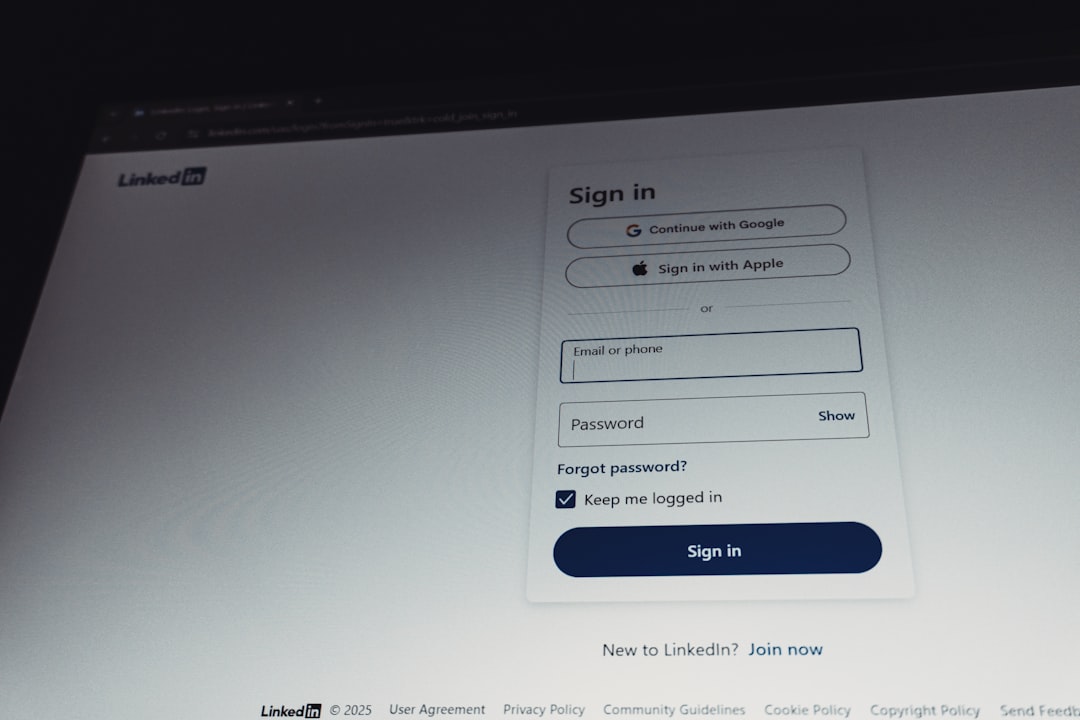
- Are you using the right email address?
- Did you type your password correctly?
- Is Caps Lock turned on?
- Is your internet working?
- Are you on the correct Klaviyo login page?
These sound too easy. But easy things cause many login problems.
If you manage more than one inbox, check that you are using the right email. Your Klaviyo invite may have gone to a work email, not your personal one.
Also, passwords are sneaky. One tiny extra space can ruin the party. If you copied and pasted your password, make sure there is no blank space at the start or end.
Reset Your Password
If your password does not work, reset it.
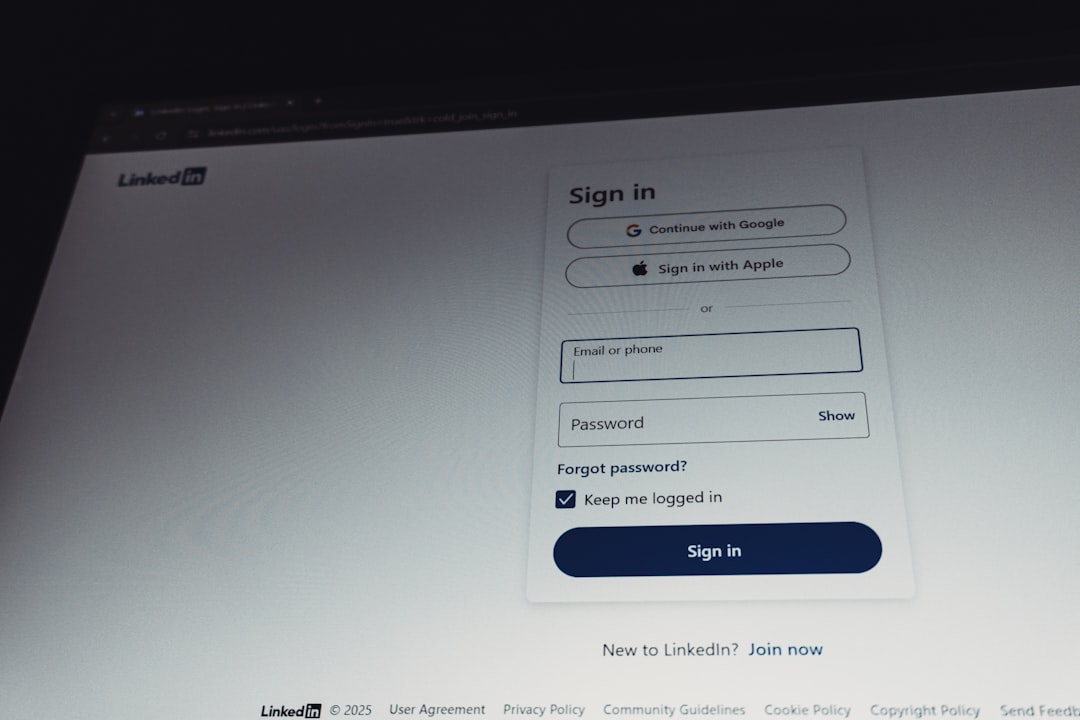
Go to the Klaviyo login page. Click Forgot password? Then follow the steps. Klaviyo should send you an email with a reset link.
When you create a new password, use something strong. Do not use password123. Do not use your dog’s name plus your birthday. Your dog is cute, but hackers are rude.
A good password should have:
- Uppercase letters
- Lowercase letters
- Numbers
- Symbols
- Enough length to be hard to guess
If you use a password manager, this is a great time to let it help. Password managers remember the hard stuff so your brain can focus on snacks and strategy.
Check Your Email for the Reset Link
Did you request a reset but never get the email?
Check these places:
- Spam folder
- Promotions tab
- Updates tab
- Trash folder
- All Mail
Also search your inbox for Klaviyo. Sometimes emails hide like tiny digital ninjas.
If you still do not get the reset email, you may be using the wrong login email. Or your company email system may be blocking messages. Ask your IT team to check.
Try Another Browser
Your browser may be the problem.
Yes, browsers have moods.
If Klaviyo will not let you log in, try a different browser. For example, if you are using Chrome, try Firefox, Safari, or Edge.
You can also try a private or incognito window. This helps you test if cookies or extensions are causing trouble.
Here is a quick plan:
- Open a private browser window.
- Go to the Klaviyo login page.
- Enter your email and password.
- Try logging in again.
If it works in private mode, your main browser has something messy going on. Time to clean house.
Clear Cache and Cookies
Your browser saves little bits of website data. This is called cache and cookies. Usually, this helps websites load faster. Sometimes, it causes weird login issues.
Clearing cache and cookies can fix the problem.
Do this in your browser settings. Look for options like Privacy, Cookies, or Clear browsing data.
After clearing them, close the browser. Then open it again. Try Klaviyo one more time.
Warning: clearing cookies may log you out of other websites too. So if you suddenly have to log back into your email, calendar, or shopping cart full of socks, that is why.
Turn Off Browser Extensions
Browser extensions can be useful. They block ads. They check grammar. They manage passwords. They make the internet feel fancy.
But sometimes they block important scripts. Then Klaviyo may not load or log in correctly.
Try turning off extensions for a moment. Pay special attention to:
- Ad blockers
- Privacy blockers
- Script blockers
- VPN extensions
- Cookie blockers
After turning them off, refresh the page. Try to log in again.
If it works, turn extensions back on one by one. This helps you find the troublemaker. It is like a tiny browser lineup.
Check Two-Factor Authentication
Klaviyo may ask for a two-factor authentication code. This is also called 2FA. It adds extra security to your account.
That is good.
But it can be annoying when you cannot get in.
If your 2FA code is not working, check these things:
- Are you using the newest code? Codes expire fast.
- Is your phone time correct? Authenticator apps need accurate time.
- Are you using the right authentication app?
- Did you recently switch phones?
- Do you have backup codes?
If your phone time is wrong, set it to update automatically. Then try again.
If you lost access to your 2FA device, you may need help from your account admin or Klaviyo support. Be ready to prove you are really you. No fake mustaches allowed.
Make Sure Your Account Still Has Access
Sometimes the problem is not your password.
Sometimes your user access changed.
If you are part of a team, an admin may have removed your access. Or your role may have changed. Or you may have been invited with a different email address.
Ask your Klaviyo account owner or admin to check your user status.
They should confirm:
- Your email address is listed as a user
- Your invite was accepted
- Your user role is active
- Your permissions are correct
If you never accepted the invite, ask your admin to resend it. Then check your inbox. And yes, check spam again. Spam folders are where important emails go to wear disguises.
Look for Klaviyo Service Issues
Sometimes Klaviyo itself may be having a service issue.
This is rare, but it can happen. Software is powerful. It is also still software.
If many people on your team cannot log in, check Klaviyo’s status page. It may show if there are outages, delays, or system problems.
If Klaviyo is down, there is not much to fix on your side. You can wait, sip coffee, and avoid clicking the login button 400 times. It will not make the servers feel more motivated.
Check Your Network or VPN
Your workplace network may block some sites or scripts. Your VPN may also cause trouble.
Try this:
- Turn off your VPN for a moment.
- Switch to another Wi-Fi network.
- Try a mobile hotspot.
- Ask your IT team if Klaviyo is blocked.
If Klaviyo works on another network, your original network may be the issue.
This is common in offices with strict security settings. It is not personal. The firewall is just doing firewall things.
Update Your Browser
An old browser can cause login problems.
Web apps like Klaviyo need modern browser features. If your browser is ancient, it may struggle.
Check for updates. Install them. Restart the browser.
Also, make sure your computer or mobile device is updated. Old operating systems can cause odd behavior too.
If your laptop sounds like a tiny airplane and has not updated since the dinosaur age, this may be the sign.
Try Logging In on Another Device
If your computer refuses to cooperate, try another device.
Use your phone. Use a tablet. Use another computer. If you can log in somewhere else, your account is probably fine.
That means the issue is likely on your original device, browser, network, or settings.
This is a helpful test. It narrows the problem fast.

What If You See an Error Message?
Error messages are clues.
Do not ignore them. Do not just shout at them. Read them carefully.
A message like Invalid email or password usually means the login details are wrong. Try resetting the password.
A message about permissions may mean your user role changed. Contact your admin.
A message about authentication may point to 2FA trouble.
A loading loop may mean browser cache, cookies, extensions, or network issues.
If you contact support, include the exact error message. Screenshots help too. Just make sure you do not share your password or private codes.
Contact Your Account Admin
If you work with a team, your account admin is your first hero.
The admin can check if you still have access. They can resend invites. They can review your user role. They may also know if your company changed security settings.
Send them a short message like this:
Hi! I cannot log in to Klaviyo. I tried resetting my password and using another browser. Can you check if my user access is active?
Simple. Clear. No drama. Very classy.
Contact Klaviyo Support
If you have tried everything and still cannot log in, contact Klaviyo support.
Before you do, gather useful details. This saves time.
- Your login email address
- The error message you see
- What browser you are using
- What device you are using
- Whether 2FA is enabled
- Steps you already tried
- Screenshots, if useful
Do not send your password. Do not send live authentication codes. Support does not need those.
Be polite and clear. Support teams are much more helpful when they do not have to decode a panic novel.
How to Avoid Login Trouble Next Time
Once you are back in, take a few minutes to prevent future chaos.
- Use a password manager. It keeps passwords safe and easy to use.
- Save backup codes. Store them somewhere secure.
- Keep your email updated. Make sure your Klaviyo email is correct.
- Update your browser. Do this often.
- Review team access. Remove old users and confirm active ones.
- Use secure 2FA. It protects your account.
A little setup now can save a lot of future sighing.
Quick Troubleshooting Checklist
Need the fast version? Here you go.
- Check your email and password.
- Turn off Caps Lock.
- Reset your password.
- Check spam for the reset email.
- Try a private browser window.
- Clear cache and cookies.
- Disable browser extensions.
- Check your 2FA code.
- Try another device.
- Check your VPN or network.
- Ask your admin about your access.
- Contact Klaviyo support.
Final Thoughts
Not being able to log in to Klaviyo is frustrating. But it is usually not a disaster. Most login issues come from passwords, browsers, 2FA, user permissions, or network settings.
Start with the simple fixes. Then move to the deeper ones. Keep notes on what you tried. That way, if you need help, you can explain the issue fast.
And remember, every marketer gets locked out of something at some point. It is practically a badge of honor. Fix it, log in, and get back to building campaigns that make customers click, smile, and buy.