To delete iPhone wallpapers, start from the Lock Screen, not Settings. On iOS 16 and later, Apple lets you keep multiple Lock Screen and wallpaper pairs, and you can remove the ones you no longer want from the Lock Screen gallery [source: Apple]. This is usually the fastest and cleanest method.
TLDR: Wake your iPhone, touch and hold the Lock Screen, swipe to the wallpaper you want to remove, swipe up, then tap the trash icon. For example, if you have 10 old wallpaper sets from trying photos, colors, and widgets, you can usually remove each one in about 10 to 20 seconds. If the wallpaper came from a photo, deleting the wallpaper does not always delete the original image from Photos. You may need to clean both places.
How wallpaper deletion works on iPhone
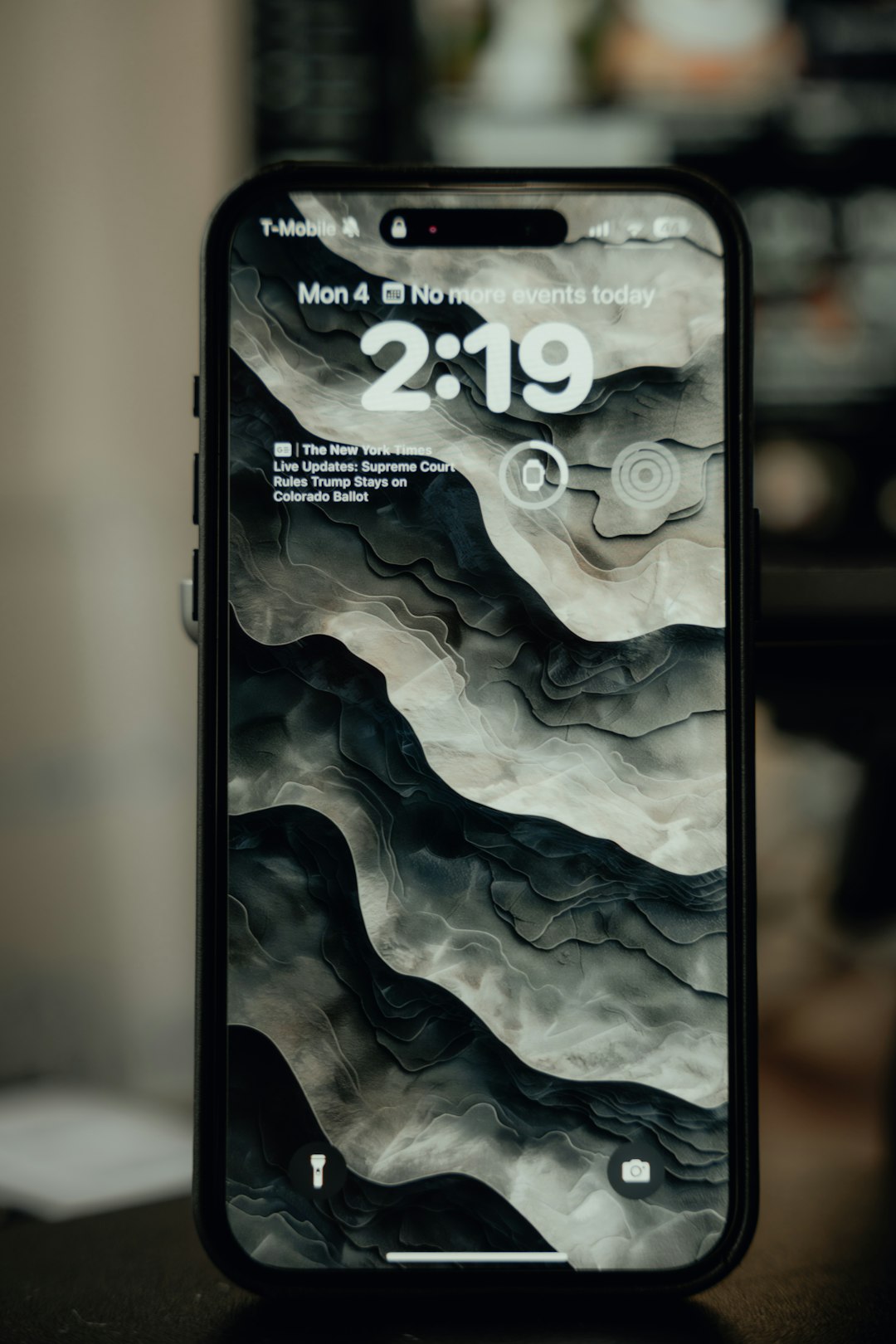
Your iPhone can store more than one wallpaper setup. Each setup may include a Lock Screen, a Home Screen, widgets, clock style, filters, and sometimes a paired Focus mode.
The catch is that Apple does not put all wallpaper controls in one obvious folder. It feels like something that should take five seconds, but it often takes longer because the wallpaper gallery is hidden behind a long press on the Lock Screen.
There are two things you may want to delete:
- A wallpaper setup, such as an old Lock Screen and Home Screen pair.
- The original image file, if the wallpaper came from a photo saved in the Photos app.
How to find your current wallpapers
Use this method if you want to see every wallpaper setup saved on your iPhone.
- Lock your iPhone.
- Wake the screen, but do not unlock all the way to the Home Screen.
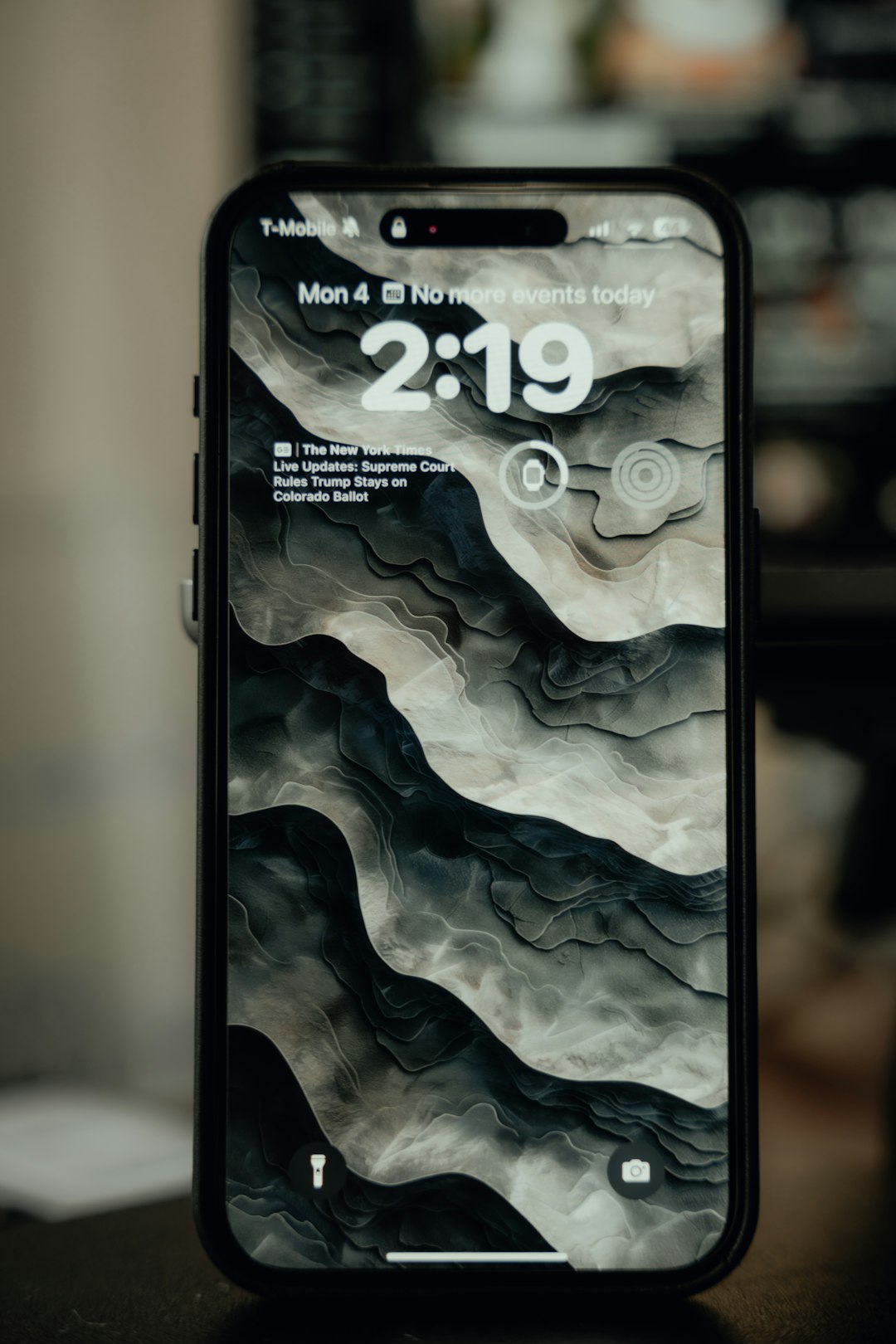
- Touch and hold the Lock Screen.
- If asked, unlock with Face ID, Touch ID, or your passcode.
- Swipe left or right to view saved wallpaper sets.
This gallery shows your saved Lock Screens. If a wallpaper has a matching Home Screen style, it is part of that same setup. You can tap Customize to check what is included before deleting anything.
How to delete a wallpaper on iPhone
Once you are in the Lock Screen gallery, deleting a wallpaper is simple.
- Find the wallpaper you want to remove.
- Swipe up on that wallpaper preview.
- Tap the trash icon.
- Tap Delete This Wallpaper to confirm.
That removes the wallpaper set from the gallery. If the Lock Screen and Home Screen were paired, both are removed as that saved setup. Your current active wallpaper cannot disappear without confirmation, so read the prompt before tapping.
If you do not see the trash icon, make sure you are swiping up on the wallpaper preview in the gallery, not on the normal Lock Screen. That small difference is easy to miss.
How to delete the original wallpaper photo
If your wallpaper came from a picture in the Photos app, deleting the wallpaper setup may not remove the photo itself. To delete the image, open Photos and find the original file.
- Open the Photos app.
- Tap Search.
- Try terms such as wallpaper, screenshot, sky, dog, or a location name.
- Check Albums, especially Recents, Favorites, Screenshots, and Downloads.
- Tap the image, then tap the trash icon.
Deleted photos usually go to Recently Deleted first. If you want to free storage sooner, open Albums, scroll to Recently Deleted, and remove them there too. Apple says deleted photos and videos are kept for up to 30 days before permanent removal [source: Apple].
How to change a wallpaper instead of deleting it
If you only dislike the current look, you may not need to delete anything. You can switch to another saved wallpaper in seconds.
- Touch and hold the Lock Screen.
- Swipe to another wallpaper.
- Tap it to make it active.
You can also tap the plus button to create a new wallpaper. Pick a photo, color, emoji pattern, weather view, or other built-in option. Then choose whether the Home Screen should match or use a separate blur, color, or image.
How to remove a Home Screen wallpaper only
Sometimes the Lock Screen looks fine, but the Home Screen is messy. Maybe the image makes app names hard to read. Honestly, it feels like this setting is buried one layer too deep.
- Open Settings.
- Tap Wallpaper.
- Find your current wallpaper pair.
- Tap Customize under the Home Screen preview.
- Choose Color, Gradient, Blur, or a different photo.
- Tap Done.
This does not delete the full wallpaper set. It only changes the Home Screen side of it.
What if you cannot find an old wallpaper?
If you are trying to locate a wallpaper image you used months ago, check where iPhone images often come from:
- Safari downloads in the Files app.
- Messages attachments from chats.
- Photos search results.
- Shared albums.
- Screenshot folders.
If the image was never saved, you may not be able to recover it from the wallpaper itself. iOS does not provide a simple “export current wallpaper” button. That can be annoying if you set an image long ago and later deleted the file.
Best practice before deleting wallpapers
Before you remove anything, pause for a few seconds. If a wallpaper is tied to a Focus mode, deleting it may also remove a setup you use for work, sleep, or personal time.
For a tidy iPhone, keep three to five wallpaper sets at most. For example, one for daily use, one for work, one for travel, and one simple dark wallpaper for night. Fewer choices make the gallery easier to manage, and you are less likely to delete the wrong one.
The safest method is simple: delete old wallpaper sets from the Lock Screen gallery, then remove unused source images from Photos or Files. That clears clutter without disturbing the rest of your iPhone.