Pick Outplayed first if you want the closest Medal.tv feel, then try ShadowPlay for low impact recording, Xbox Game Bar for quick clips, and OBS Studio when you want total control. NVIDIA says ShadowPlay can capture up to 8K HDR at 30 FPS on some setups, which is wild for a free tool [source: NVIDIA].
TLDR: We picked Outplayed, NVIDIA ShadowPlay, Xbox Game Bar, and OBS Studio. If you play two hours of Fortnite and save 15 funny moments, Outplayed is the easiest pick for auto clips. If you want fewer popups and less fuss, ShadowPlay or Xbox Game Bar may feel cleaner. OBS is best when you want high quality clips, but expect more setup time.
Medal.tv is great for fast clips and sharing. But not everyone loves its layout. Some players want less social stuff. Some want higher quality. Some just want a button that works when they clutch a 1v4 and scream like a raccoon in a kitchen.
So we picked four simple alternatives. Each one has a clear use case. No fluff.
1. Outplayed: Best Medal.tv Style App
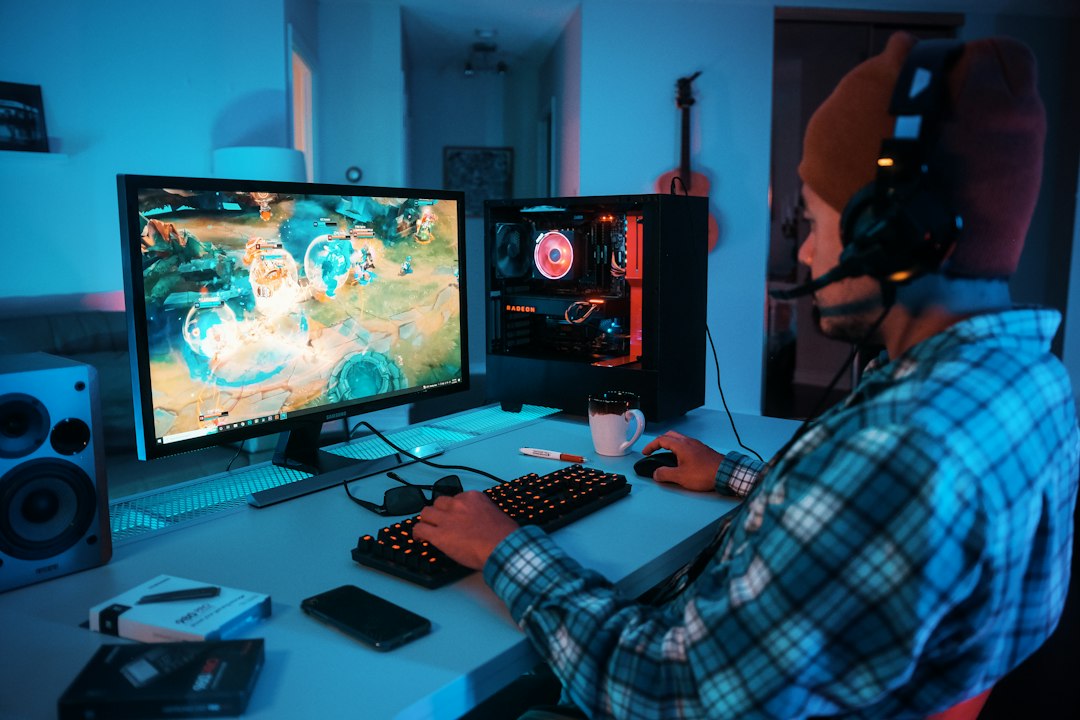
Outplayed is the best first stop if you want something that feels close to Medal.tv. It records kills, deaths, wins, assists, and other key moments in supported games. You do not need to record your whole session every time.
That is the big win. It catches the good stuff while you play. Then you can trim clips, save them, and share them.
Best for: players who want auto clips without babysitting the recorder.
- Auto capture: Great for games like Valorant, League of Legends, Fortnite, and Apex Legends.
- Easy editing: Trim clips without opening a scary video editor.
- Simple sharing: Good for Discord, TikTok, YouTube Shorts, and friends who demand proof.
The annoying bit? Outplayed runs through Overwolf. Some people love that. Some do not. It can feel a little heavy if your PC is already begging for mercy.
If Medal.tv feels familiar but messy, Outplayed is a strong swap. It gives you the same “clip it and send it” energy.
2. NVIDIA ShadowPlay: Best for Smooth PC Recording
NVIDIA ShadowPlay is perfect if you have an NVIDIA graphics card. It records using your GPU, so it usually has a small performance hit. That matters when your frames already drop every time smoke fills the screen.
Its best feature is Instant Replay. You keep it running in the background. When something cool happens, you press a hotkey. Boom. The last few minutes are saved.
Best for: PC players who care about smooth gameplay and clean clips.
- Low performance hit: Great for shooters and fast games.
- High quality: Clips can look sharp and clean.
- Hotkey saving: Save the moment after it happens.
Honestly, it feels great when it works. The setup is not hard. But the menus can feel tucked away inside NVIDIA’s app. I have wasted more than 30 seconds looking for one setting that should have been obvious.
Still, ShadowPlay is one of the best tools for serious PC players. It is fast. It is clean. It does not try too hard to be a social network.
3. Xbox Game Bar: Best Built In Option
Xbox Game Bar is already built into Windows. Press Windows + G, and the overlay opens. You can record, take screenshots, check audio, and save recent gameplay.
This is the “I do not want to install another thing” choice. And honestly, that is a valid mood.
Best for: casual players who need quick clips with no extra setup.
- Already installed: No download hunt.
- Fast controls: Open it with a simple shortcut.
- Good enough quality: Fine for Discord, group chats, and quick posts.
The catch is that it is not as smart as Medal.tv or Outplayed. It will not auto-detect every clutch or funny fail. You need to remember the controls.
It also drives me crazy that finding old clips can feel weird the first time. They usually go into the Captures folder, but Windows has a special talent for making normal folders feel like a treasure hunt.
Still, for simple recording, Xbox Game Bar is hard to beat. It is free. It is there. It works.
4. OBS Studio: Best for Control Freaks
OBS Studio is not the easiest Medal.tv replacement. But it is the most powerful one here. Streamers use it. YouTubers use it. People who care way too much about bitrate use it. That last group may include your friend who says “actually” a lot.
OBS can record your whole screen, one game, your mic, your webcam, or a full scene with overlays. You can also use Replay Buffer to save recent gameplay, similar to Instant Replay.
Best for: creators who want full control over quality and layout.
- Custom scenes: Add webcam, alerts, images, and text.
- Great quality: Tune resolution, FPS, bitrate, and audio.
- Replay Buffer: Save recent moments after they happen.
The downside is setup. OBS does not hold your hand. Expect to spend 10 to 20 minutes getting it right if you are new. Maybe more if your mic decides to vanish for no reason. Classic.
Quick Pick Guide
- Want the closest Medal.tv feel? Pick Outplayed.
- Want smooth PC clips? Pick NVIDIA ShadowPlay.
- Want no extra install? Pick Xbox Game Bar.
- Want the best control? Pick OBS Studio.
If you mostly play competitive games, start with Outplayed. If your PC has an NVIDIA card, try ShadowPlay too. If you only clip once in a while, use Xbox Game Bar and move on with your life.
For creators, OBS Studio wins long term. It takes more work, but the results can look much better. Your clips deserve that. Especially the ones where you totally meant to miss that shot.