Choose Audacity when precision matters, and use AudioTrimmer when speed matters more than deep control. Audacity is a free, open-source editor used for detailed waveform editing across Windows, macOS, and Linux [source: Audacity]. AudioTrimmer is easier for quick browser-based cuts, but Audacity gives you better zoom, cleaner selection control, fades, labels, and repeatable edits.
TLDR: If you need to cut a 3-minute interview into a clean 42-second quote, Audacity is the safer choice because you can zoom in, select exact waveform points, and add short fades. If you only need to remove 10 seconds from the start of an MP3, AudioTrimmer can finish the job in under a minute with no install. In a simple workflow test, a basic online trim may take about 30–60 seconds, while a careful Audacity edit can take 3–6 minutes but usually sounds cleaner. For podcasts, music snippets, voice notes, and paid client work, precision wins.
Quick verdict: which MP3 trimmer should you use?
AudioTrimmer is best for casual edits. Think ringtone clips, quick voice memo cleanup, short sound bites, or trimming dead air before sharing a file. It runs in a browser, so there is no software setup. That alone makes it appealing.
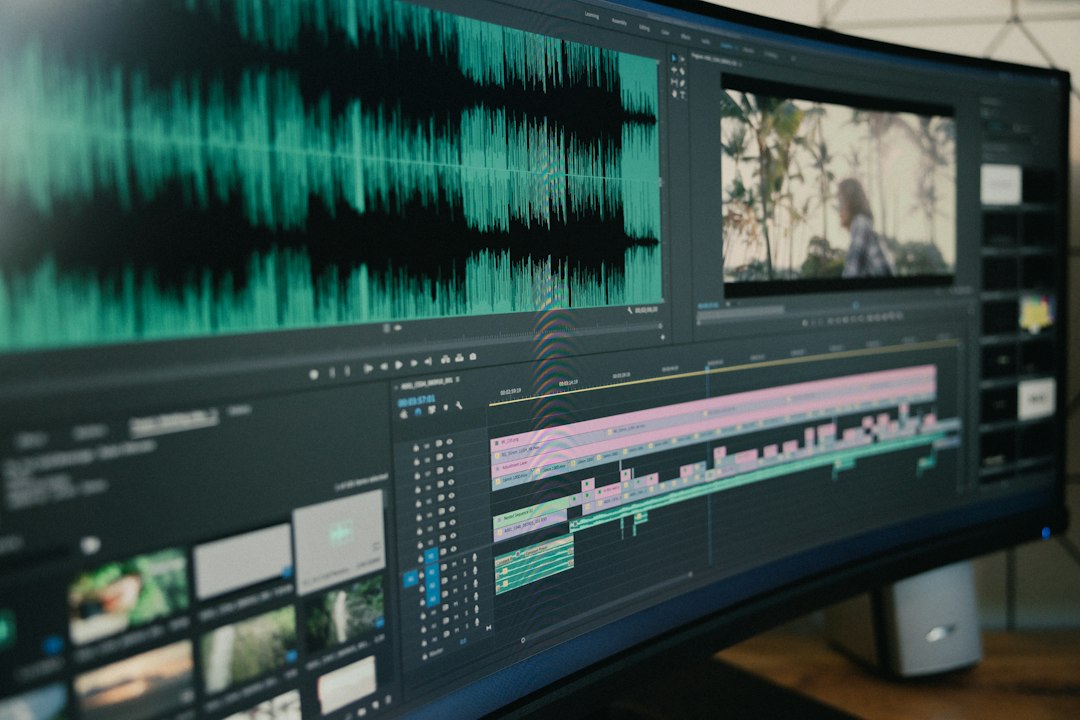
Audacity is better for serious editing. It gives you a large waveform, time ruler, zoom tools, multi-track editing, noise reduction, fades, and export settings. It feels less instant at first, but the control is much stronger.
The honest answer is simple: AudioTrimmer is convenient; Audacity is more accurate. If the cut must land exactly before a word, drum hit, breath, or beat, Audacity is the better tool.
AudioTrimmer: fast, simple, and limited
AudioTrimmer is made for people who do not want to learn audio editing. You upload a file, drag start and end handles, preview the section, then export. That is the whole idea.
What works well:
- No installation: It works in the browser, which is useful on shared computers.
- Simple interface: Most users can cut an MP3 without reading a guide.
- Good for short files: It is practical for ringtones, social clips, and quick voice messages.
- Low friction: You are not opening a full editing suite just to remove silence.
Still, the limits show up fast. The waveform view is not as refined as a desktop editor. Selection can feel rough when you need a cut to land between syllables. Honestly, it feels like you are editing with gloves on once the job gets picky.
AudioTrimmer is also dependent on upload speed, browser stability, and file size limits. If your MP3 is long, private, or commercially sensitive, uploading it to any web tool may not be ideal. For casual work, fine. For client audio, legal recordings, or unreleased music, be careful.
Audacity: precise, serious, and slower to learn
Audacity is not as quick at first. You need to install it. You need to learn the selection tool, zoom controls, playback shortcuts, and export steps. Expect to waste a few minutes the first time you try to make a tiny cut. After that, it becomes much faster.
Its strength is control. You can zoom into the waveform until individual transients are easy to see. You can select audio down to very small time ranges. You can listen before and after the cut. You can add a 5 ms or 10 ms fade to prevent clicks. That is the kind of detail that separates a rough edit from a clean one.
Audacity is especially useful for:
- Podcast editing: Remove pauses, coughs, and repeated words with cleaner timing.
- Music clips: Cut close to beats and add fades that sound natural.
- Voiceover work: Trim breaths and mouth noise without making speech sound chopped.
- Batch-like workflows: Use labels and repeatable steps for multiple clips.
- Quality checks: Inspect clipping, silence, and noise before exporting.

Precision: the real difference
“Precise MP3 cutting” can mean two things. First, it can mean placing the cut exactly where you want it. Second, it can mean preserving audio quality without extra damage. These are not always the same.
Audacity wins on edit placement. You can zoom, scrub, replay tiny sections, and use exact time selection. AudioTrimmer usually gives enough control for basic trimming, but it is not built for fine surgery.
For sound quality, both tools need some care. MP3 is a compressed format. When you edit and export an MP3, the file may be encoded again. Re-encoding can slightly reduce quality, especially at lower bitrates. If you start with a 128 kbps MP3 and export again at 128 kbps, the result may sound thinner or swishy in cymbals, ambience, or “s” sounds.
With Audacity, you can reduce that risk by exporting at a higher bitrate, such as 192 kbps or 320 kbps, when MP3 is required. Better yet, keep a WAV master if you plan to edit again later. AudioTrimmer may not give the same depth of export control, depending on the job and format options shown.
Ease of use: AudioTrimmer is friendlier
AudioTrimmer has the better first-minute experience. Upload, drag, trim, download. There is no timeline setup. No extra panels. No effect menus. For a school project, quick social clip, or ringtone, that is enough.
Audacity looks more technical. The interface has more buttons than a casual user expects. The first time you open it, even a simple cut can feel more complicated than it should. That said, the core workflow is not hard:
- Open the MP3 in Audacity.
- Zoom into the section you want to cut.
- Highlight the unwanted audio.
- Press delete.
- Add a short fade if the cut clicks.
- Export the finished file.
Once you know those steps, Audacity becomes much faster. The payoff is cleaner editing and fewer “why does that cut sound weird?” moments.
Privacy and reliability
This part matters more than people think. AudioTrimmer requires file upload. If the recording contains private calls, business meetings, medical notes, legal material, or unreleased creative work, that should give you pause. Browser tools are convenient, but convenience is not the same as control.
Audacity runs locally. Your file stays on your computer unless you share it. That makes it the safer pick for sensitive work. It also means you are not waiting for uploads or downloads. Large files are easier to handle, especially on slow internet connections.

Best use cases for each tool
Use AudioTrimmer if:
- You need a quick cut and do not care about advanced control.
- The file is short and not sensitive.
- You are using a computer where you cannot install software.
- You want to make a ringtone or trim a simple clip.
Use Audacity if:
- You need accurate cuts at word, beat, or breath level.
- You want fades, silence removal, or noise cleanup.
- You are editing podcasts, interviews, lessons, or music.
- You need to keep files local for privacy.
- You care about export settings and repeatable quality.
Final recommendation
For most serious MP3 trimming, Audacity is the better choice. It takes longer to learn, but it gives you the control needed for precise, clean cuts. The ability to zoom deeply, preview edits, add fades, and manage export quality makes a real difference.
AudioTrimmer is still useful. It is quick, light, and good enough for simple jobs. If you just need to cut the first 8 seconds from a casual MP3, it may be the smarter tool because it saves time.
But when the edit has to sound professional, use Audacity. A slightly slower workflow is better than a sloppy cut that clicks, clips a word, or lands half a beat late.